SYMBION LRF DXT50 Manual
Specification
| Model | DXT50 |
| SKU | 77456 |
| Microbolometer | |
| Type | uncooled |
| Resolution, pixels | 1280×1024 |
| Pixel Pitch, µm | 12 |
| Sensor NETD, mK | < 35 |
| System NETD, mK | < 20 |
| Frame rate, Hz | 50 |
| Digital Sensor | |
| Type | CMOS |
| Resolution, pixels | 3840×2160 |
| Optical Characteristics | |
| Thermal imaging channel: | |
| Lens | 50 mm F/1.0 |
| Magnification, x | 2 – 24 |
| Field of view angle (horizontal), °/m@100 | 17.5 / 30.7 |
| Detection distance (deer-type object), m | 2300 |
| Digital channel: | |
| Focal length | 50 mm |
| Magnification, x | 6.5 – 26 |
| Digital zoom | x1, x2, x4 |
| Field of view angle (horizontal), °/m@100 | 5.8 / 10.2 |
| Minimum Focus Distance, m/yd | 3 / 3.28 |
| Eye relief, mm/inch | 13 / 0.51 |
| Exit pupil diameter, mm/inch | 5 / 0.2 |
| Diopter adjustment, D | -5/+5 |
| Interpupillary distance adjustment, mm / inch | 62.5 – 74 / 2.46 – 2.91 |
| Display | |
| Type | AMOLED |
| Resolution, pixels | 1920×1080 |
| Operational Characteristics | |
| Power supply, V | 3.7 |
| Battery type / Capacity / Output voltage | Li-Ion Battery Pack APS 5 / 4900 mAh |
| External power supply | 5 V, 9 V (USB Type-C Power Delivery) |
| Operating time from 2 APS 5 battery packs at t=22 °C, hours* | 8 |
| Degree of protection, IP code (IEC60529) | IP67 |
| Operating temperature range, °С /° F | -25 … +40 / -13 … 104 |
| Dimensions, mm / inch | 207x132x72.5 / 8.2×5.2×2.9 |
| Weight (with battery), kg / oz | 1 / 35.3 |
| Video Recorder | |
| Video / photo resolution, pixel | 1440×1080 |
| Video / photo format | .mp4 / .jpg |
| Built-in memory | 64 Gb |
| Wi-Fi Channel** | |
| Frequency | 2.4/5 GHz |
| Standard | IEEE 802.11 b/g/n/ac |
| Bluetooth | |
| Wireless Protocol | BLE 4.2 |
| Laser rangefinder | |
| Wavelength, nm | 905 |
| Max. measuring range, m/yd*** | 1500/1640 |
| IR-Illuminator | |
| Type | LED |
| Wavelength, nm | 850 |
* Actual operating time depends on the degree of use of Wi-Fi, video recorder, built-in laser rangefinder, Bluetooth, IR illuminator, active observation channels and activated power saving mode.
**The reception range may vary depending on various factors: obstacles, other Wi-Fi networks.
***Depends on the characteristics of the object under observation and environmental conditions.
About the device
Description
Symbion LRF multispectral binoculars are high-tech devices designed for various applications, such as hunting, search and rescue operations, nature conservation, wildlife observation, and active tourism.
Symbion LRF binoculars allow you to quickly switch between thermal imaging and digital channels. The digital channel can be used in both color and black-and-white modes. There is support for the Duo multispectral mode, where the image from one channel is displayed in the main window and the image from the second channel is displayed in a PiP (Picture in Picture) window.
The thermal imaging channel can be used both at night and during the day, including in difficult weather conditions (fog, smog, rain) and in the presence of obstacles that make it difficult to detect targets (branches, tall grass, thick bushes, etc.).
In digital mode, the device allows for observation both during the day and at night. In night conditions, it is recommended to use a focusable infrared illuminator.
To get started, see the sections:
Package Contents
- Symbion LRF multispectral binoculars
- APS 5 rechargeable battery (2 pcs.)
- APS 5 battery caps (2 pcs.)
- APS 5 charger
- Power adapter
- USB Type-C cable with Type-A adapter
- Carrying case for binoculars
- Binoculars harness
- Neck strap
- Optics cleaning cloth
- Quick start guide
- Warranty card
- Tripod adapter
Components and Controls


- Thermal channel focusing ring
- Digital channel focusing ring
- Battery compartment
- IR-illuminator
- Thermal channel lens
- Digital channel lens
- Laser rangefinder
- Diopter adjustment rings
- Eyepieces
- USB-C port
- ON/Sleep/OFF switch
- Tripod adapter socket
- Lens caps
- Microphone
- Proximity sensor
- IR focusing switch
- REC button
- BACK button
- Calibration/Stabilization button
- DUO button
- MODE button
- LRF button
- MENU button
- Controller ring
Features
- Multispectral image – digital and thermal
- 24/7 use – day, night, twilight
- Combined multispectral Picture-in-Picture modes
- 4K Digital full-color sensor
- HD 1280×1024/12µm premium thermal imaging sensor (For XT50 model)
- Built-in powerful laser rangefinder
- Focusable infrared illuminator
- Optimized for one-hand use
- Left-hand mode
- New user-friendly graphic interface
- Classic daytime binocular design
- 9-color display palette
- 3 calibration modes: manual, semi-automatic and automatic
- Long detection distance
- Smooth digital zoom
- 3 levels of sensitivity enhancement: Normal, High, Ultra
- Auto Display-Off Using Proximity Sensor
- Display dimming function
- Auto shutdown function
- Image stabilization
- Defective Pixel Repair function
- Device firmware update using the free Stream Vision 2 App
- Wide operating temperature range -25 °С – +40°С (-13 °F … 104 °F)
- Completely waterproof and dustproof IP67
- Ballistic calculator
- 2 display shapes
- Tripod mount
Video/Audio Recording
- Built-in video and sound recorder
- Integration with iOS and Android devices
- Wi-Fi remote control and viewing using a smartphone
- Storing photos and videos in Cloud when using the Stream Vision 2 App
Battery Pack
- Quick Change Li-Ion Battery Pack APS 5
- Charging from USB Power Bank
- Quick-Charge power delivery
Power Supply
Precautions
- Only use the charger supplied with the Battery Pack. The use of any other charger may irreparably damage the Battery Pack or the charger and may cause fire.
- Do not charge batteries immediately after moving the device and batteries from a cold place to a warm place. Wait at least 30 minutes for the device and batteries to warm up.
- Do not leave the Battery Pack unattended while charging.
- Never use a modified or damaged charger.
- Do not leave the Battery Pack with a charger connected to the power adapter after charging is complete.
- Do not expose batteries to high temperatures or to a naked flame.
- Do not use batteries as a power source for devices that do not support APS batteries.
- Do not disassemble or bend batteries or charger.
- Do not drop or strike batteries or charger.
- Batteries and charger are not designed to be immersed in water.
- Keep the Battery Pack out of the reach of children.
Recommendations for Battery Use
- For long-term storage, batteries should be partially charged – from 50 to 80%.
- Batteries should be charged at an ambient temperature of 0 °C … +35 °C (32 °F … 95 °F). Otherwise, battery life will be significantly reduced.
- When using batteries at sub-zero (sub 32° F) ambient temperatures, the battery capacity decreases, this is normal and not a defect.
- Do not use batteries at temperatures outside the range of -25 °C … +40 °C (-13 °F … 104 °F) – it may reduce the battery life.
- The battery has a short-circuit protection. Any situation that may cause short-circuiting, however, should be avoided.
Battery Charging
Symbion LRF binoculars are supplied with a removable and rechargeable APS5 lithium-ion battery pack. The battery should be charged before first use.
The icon  in the status bar will flash when the battery is low. The battery needs to be charged.
Option 1

- Install the APS5 battery in the battery compartment of the device.
- Connect the USB Type-C cable (1) to the USB Type-C connector (2) of the device.
- Connect the other end of the USB cable (1) to the Power Adapter (3) by removing the USB Type-A adapter (4).
- Plug the Power Adapter (3) into a 100-240 V socket.
- Wait until the battery is fully charged (indication in the status bar:
 ).
).
Note: next to the USB Type-C connector on the device body there is a light-emitting (5) diode to indicate the battery charge level when the device is switched off.
| LED indication | Battery status |
 |
Battery is charging |
 |
Battery is fully charged |
 |
Battery is defective. Do not use the battery! |
Option 2

- Insert the APS 5 battery (1) along the guide into the APS 5 charger (2) slot as far as it will go. The APS 5 charger is supplied with your device or purchased separately.
- Connect the other end of the USB Type-C cable (3) to the Power Adapter (4) by removing the USB Type-A adapter.
- Plug the Power Adapter (4) into a 100-240 V socket.
- Connect the other end of the USB Type-C cable (3) to the USB Type-C connector (5) of the charger by removing the USB Type-A adapter (6).
- LED indicators (7) will display the battery charge level (see Table).
- Wait until the battery is fully charged (LED indication:
 ).
).
Note: Two batteries can be charged at the same time, a second slot is provided for it.
| indication in the battery charging mode | Battery Level |
 |
Battery charge level is from 0% to 25% |
 |
Battery charge level is from 26% to 50% |
|
Battery charge level is from 51% to 80% |
|
Battery charge level is from 81% to 99% |
|
Battery is fully charged. Charging will automatically stop. The battery can be disconnected from the charger. |
|
Defective battery. Do not use the battery! |
| LED indication in the standby mode* | Battery Level |
|
Battery charge level is from 0% to 25% |
|
Battery charge level is from 26% to 50% |
|
Battery charge level is from 51% to 80% |
|
Battery charge level is from 81% to 99% |
|
Battery is fully charged. It can be disconnected from the charger. |
|
Defective battery. Do not use the battery! |
* Standby mode is when the batteries are in the charger but the Power Adapter is not connected. In this mode, the indicators are only on for 10 seconds.
Attention! When using a Power Adapter that does not support USB Power Delivery fast charging technology, the flicker frequency of the LED indicators decreases by a factor of 3 and the charge time increases.
Attention! The charger heats up during fast charging. Excess heat is removed through the radiator and does not affect the device operation.
Battery Installation
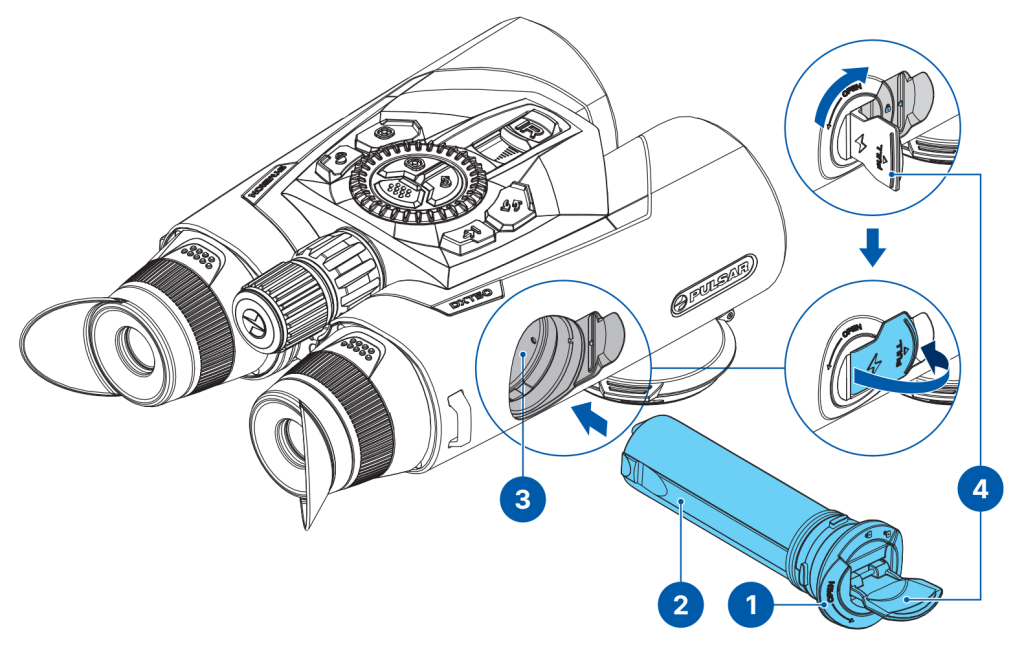
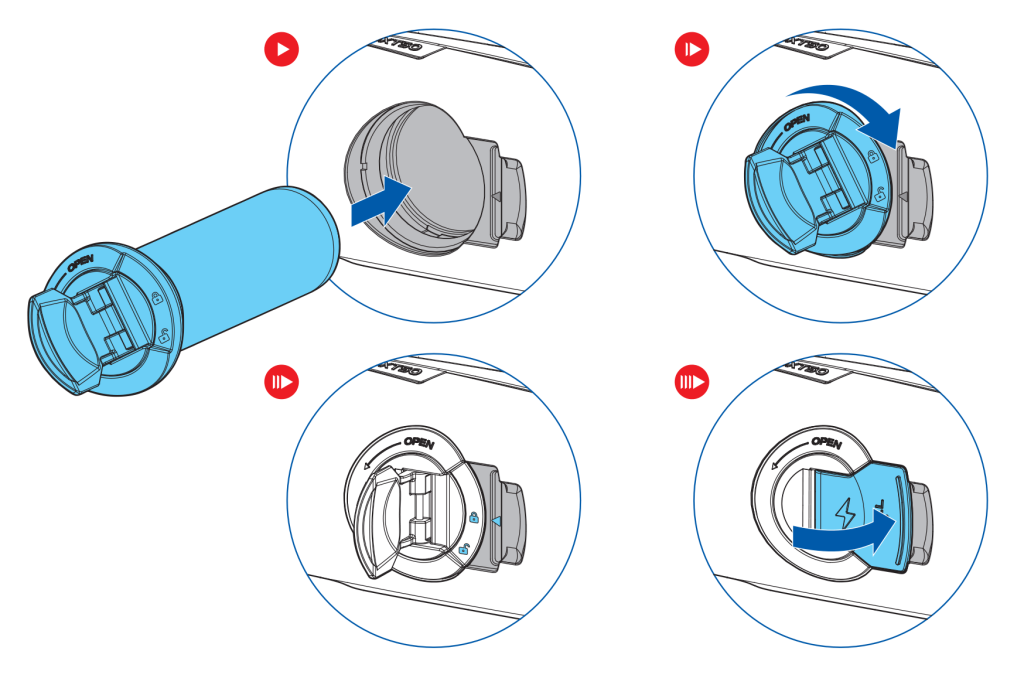
1. Place the battery compartment cover (1) onto the battery (2).
2. Insert the battery (2) into the battery compartment (3) along the guides until it is fully seated. The open lock icon  must align with the arrow on the housing.
3. Turn the cover until the closed lock icon  aligns with the arrow on the housing.
4. Close the battery compartment cover handle (4).
Removing the Battery
1. Pull the battery compartment cover handle (3).
2. Turn the cover (1) counterclockwise until the open lock icon aligns with the arrow on the housing.
3. Pull the handle (3) toward you and carefully remove the battery (2) from the compartment (3).
Precautions:
- Do not rotate the cover (1) relative to the battery (2) once it is attached.
- When removing the cover (1), slide it horizontally relative to the battery (2). Do not lift it upward during removal.

External Power Supply
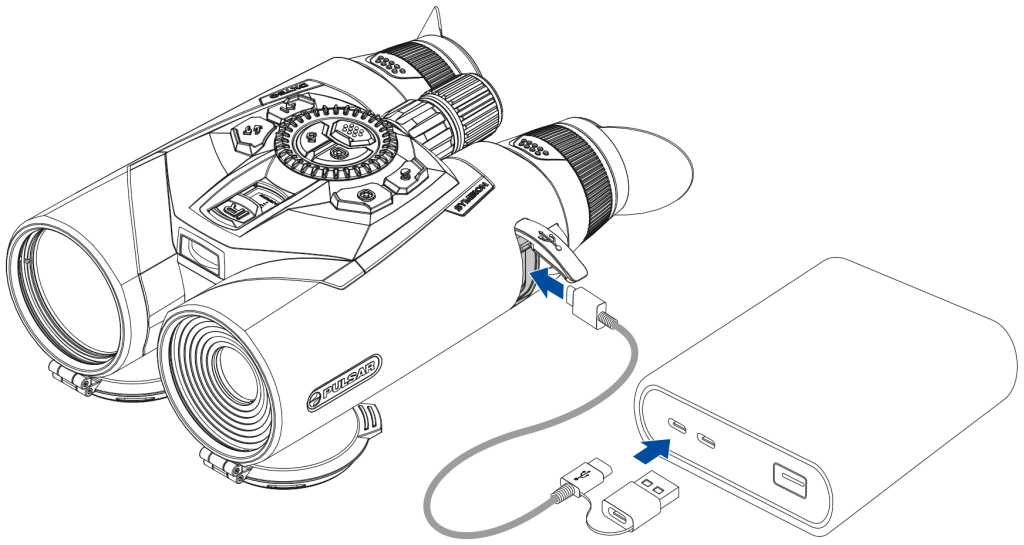
Power can be supplied from an external source such as a 5 V or 9 V power bank.
- Connect the external power supply to the USB Type-C port of the device.
- The device switches to external power source, while the removable Battery Pack APS5 will gradually recharge.
- The display will show the battery icon
 with charge level as a percentage.
 - If the device is powered by an external power supply, but the APS5 battery is not connected, an icon is shown.
- When the external power supply is disconnected, the device switches to the APS5 battery without powering off.
Warning! Charging the APS5 battery from the power bank at an external temperature below 0 °C (32 °F) can reduce the battery life. When using external power, connect the Power Bank to the device after it has been turned on and working for several minutes.
Getting Started
Recommended: When using the device for the first time, it is recommended to connect to the Stream Vision 2 app and check for firmware updates. If a newer version is available, the software should be updated.
Charging the battery
Turning on and adjusting the image
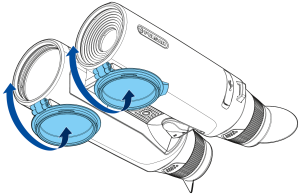
- Open the lens caps. The lens caps can also be removed.
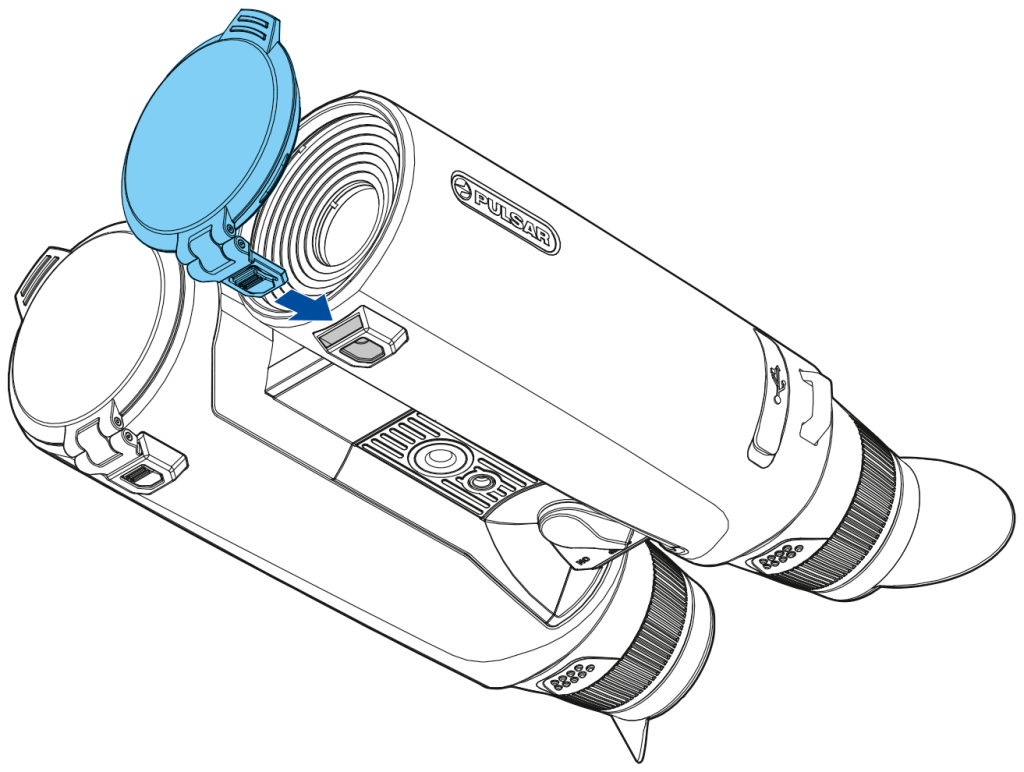
- Turn the switch to the ON position to turn on the device.

- Adjust the interpupillary distance by moving the eyepieces closer together or further apart.
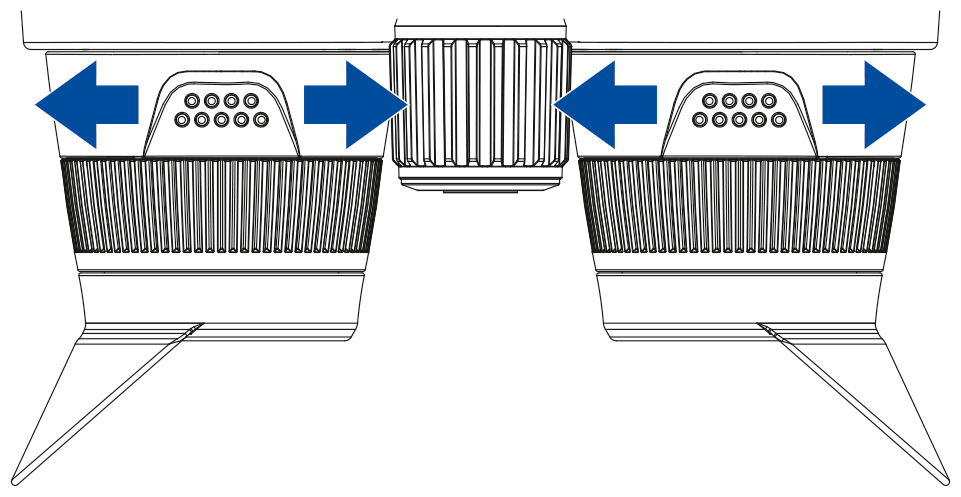
- Adjust the sharpness of the symbols on the displays by rotating the eyepiece diopter adjustment rings. After that, regardless of the distance and other conditions, it is not necessary to rotate the eyepiece diopter adjustment rings.

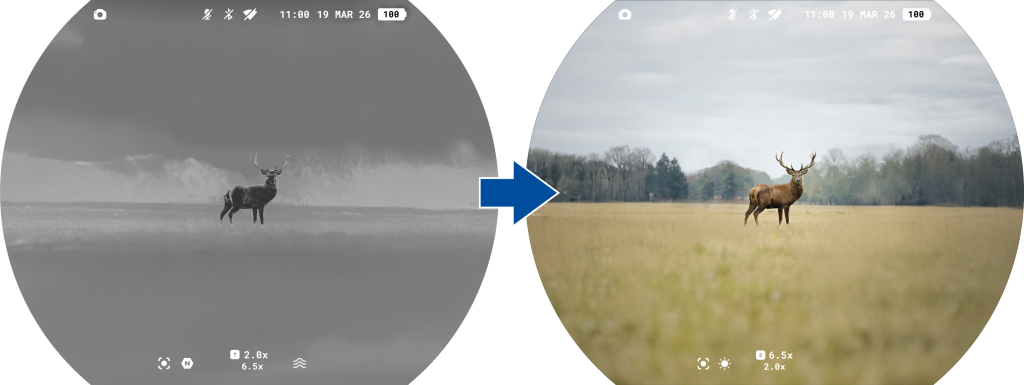
- Press the DUO
 button briefly to select the desired image mode: thermal or digital.

- To focus on the object of observation, rotate the focus rings of the thermal imaging
 or digital channels, depending on which channel you are using.


- If necessary, adjust the brightness and contrast of the displays in the quick menu (the menu is activated by briefly pressing the button MENU) or in the main menu.
Observation conditions: time of day, weather, and type of objects being observed affect image quality. The desired quality in a specific situation can be achieved using the microbolometer sensitivity amplification level adjustment function (for thermal imaging mode), IR illuminator settings (radiation power level, focus) for digital mode, as well as user settings for display brightness and contrast.
DUO mode
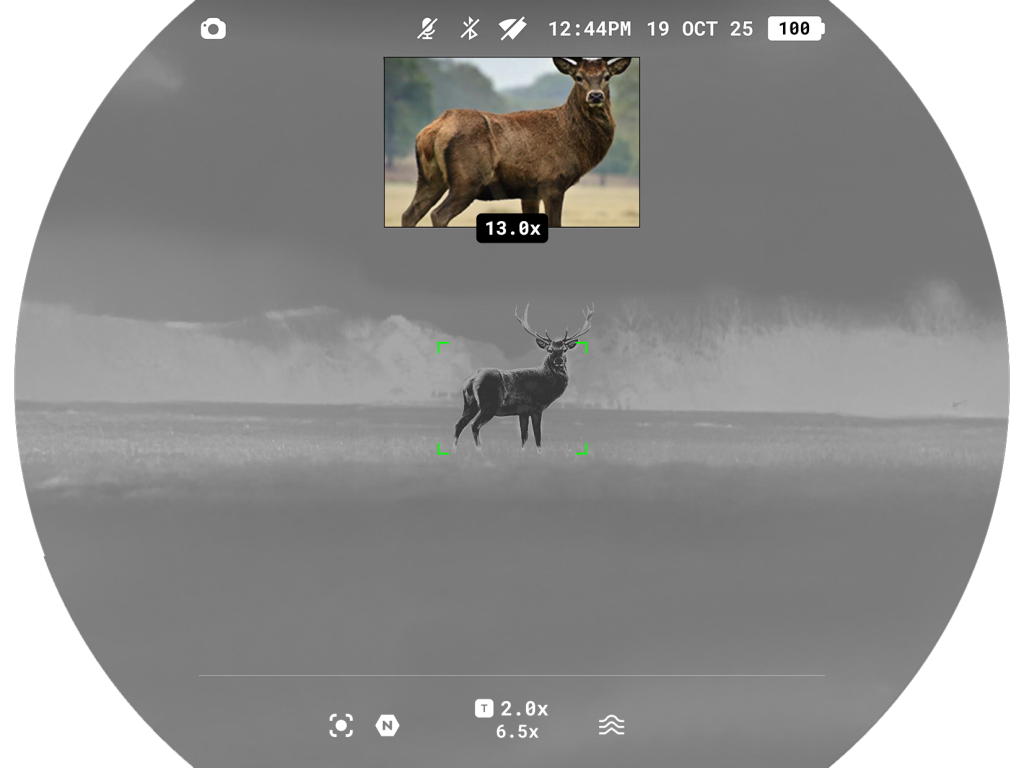
- Press and hold the DUO button to activate the DUO multispectral mode.
- Press the DUO button briefly to select the PiP window image mode: thermal or digital.
Image adjustment in thermal imaging and thermal imaging DUO modes
- Select the calibration mode: manual, semi-automatic, automatic the main menu item (enter the menu by pressing and holding the MENU button).
- Calibrate the thermal imaging by briefly pressing the button
 (if semi-automatic or manual calibration mode is selected). Close the thermal imaging lens cover before manual calibration.
 - Select the desired amplification level
 by pressing and holding the MODE
  button.
 - To improve the thermal image when increasing the gain level, activate the smoothing filter
 in the main menu.
 - Select one of the color palettes by briefly pressing the MODE button.

Note: In Thermal DUO mode, the IR illuminator is controlled through the Quick Menu or the Main Menu.
IR illuminator
- In Digital or Digital DUO modes, activate the IR illuminator using one of the following methods:
- Press and hold the MODE button.
- Select IR Level in the Quick Menu.
- Navigate through the Main Menu: Observation & Zoom Controls → IR Level.
- Press and hold the MODE
- Press and hold the MODE button to select one of three IR illuminator power levels. Increasing the power level is necessary when the distance to the observation object increases. This increases the battery discharge rate.
- To focus the IR illuminator, move the IR control forward or backward.
- To turn off the IR illuminator, press and hold the MODE button when the maximum power level
 is selected.

Laser rangefinder
- Briefly press the LRF
 button to turn on the rangefinder. The rangefinder mark will appear in the center of the display.
 - Briefly press the LRF button to measure the distance. If the rangefinder is not used for more than 10 seconds after measurement, it will automatically turn off.
- To measure distance in scan mode, press and hold the LRF button for 2 seconds.
Proximity sensor
- To prevent accidental decamouflage of the user, the displays automatically turn off when the observer moves the device away from their face.
- When the device is brought close to the face, the displays will automatically turn on.
- The proximity sensor is controlled by enabling or disabling Power saving mode
 in the main menu.
Switching off
- When you have finished using the device, move the switch to the OFF position to turn off the device.

Button Operation
 – Short press
 – Long press
| Controls | Functions |
|
|
IR illuminator focusing |
| MENU
|
Quick menu / Back
|
| REC
|
Photo / Video recording
|
| BACK/ZOOM
|
Digital zoom / Back
|
| CONTROLLER RING
|
Rotation:
· Smooth zoom · Menu navigation |
| CALIBRAION/STABILIZATION
|
Thermal image calibration
|
| MODE
|
Thermal imaging mode:
Digital mode:
|
| DUO
|
Thermal/Digital mode switching
|
| LRF
|
Rangefinder activation / Single distance measurement / Ballistic calculator
Double press: Disable SPOA of ballistic calculator |






Interface
Status Bar

1. Photo/video recorder
2. Microphone
3. Bluetooth
4. Wi-Fi connection
5. Time
6. Date
7. Power indication:
 – charge level if the device is powered by a battery
 – charge level if the device is charging and powered by a battery
 – the device operates on an external power supply but is not charging
– low battery charge
Thermal imaging mode

1. Image stabilization
2. Amplification level
3. Magnification in thermal/digital channel
4. Smoothing filter
Digital mode

1. Image stabilization
2. Modes:
 Day Color – color image
 Twilight – color image in low light conditions
 Night B&W – monochrome black-and-white image
 Night Green – monochrome green image
3. Magnification in digital/thermal channel
4. IR-Illuminator power levels
Quick Menu
The Quick Menu gives you instant access to the most important device settings, letting you adjust key parameters quickly without opening the main menu. It’s designed for fast, on-the-go changes to brightness, contrast, sensitivity amplification levels, and IR illuminator power.

How to open the Quick Menu:
- Briefly press the MENU button.
Navigation:
- To switch between settings, press the MENU button repeatedly.
Available settings:
- Brightness : Rotate the controller ring to set the display brightness level from 0 to 20.
- Contrast : Rotate the controller ring to set the display contrast level from 0 to 20.
- Sensitivity amplification levels : Select one of three levels for the thermal imaging channel — Normal, High, Ultra.
- IR illuminator power
 : Adjust the IR power level (Low / Medium / High) depending on observation conditions and distance to the object.
How to exit the Quick Menu:
- Press the BACK
 button or wait 5 seconds for automatic exit.
Main Menu
The main menu provides access to the full range of settings and functions of the device. It includes:
- Observation & Zoom Controls
- Image settings
- Device settings
- Media
- System settings
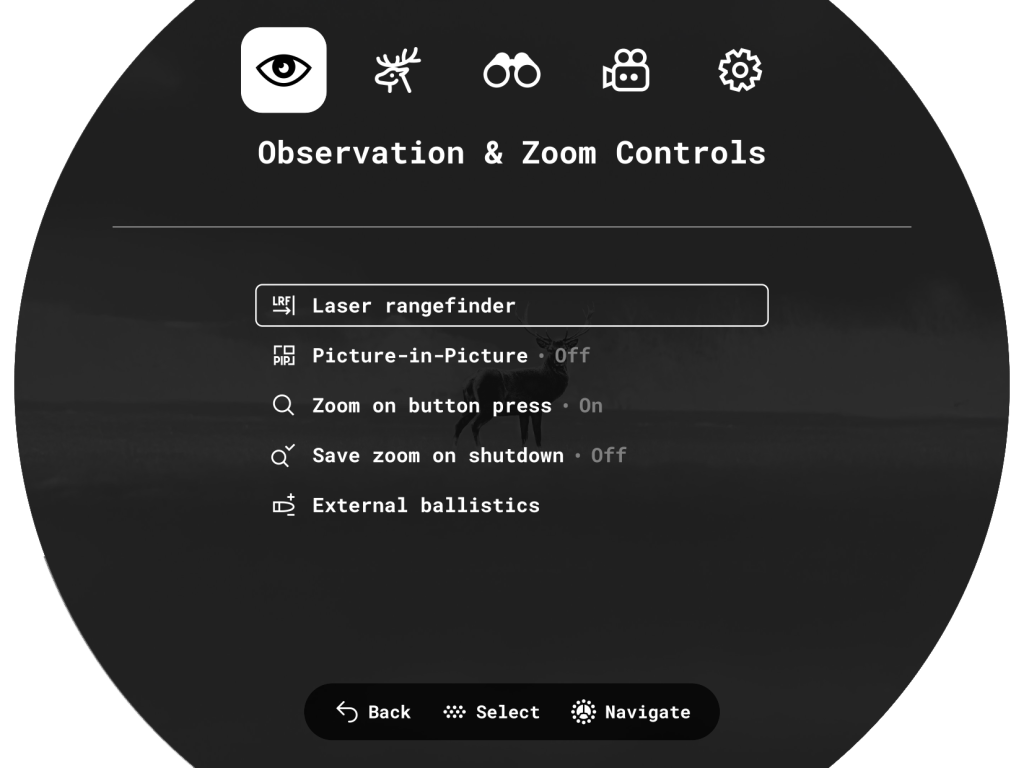
- To enter the main menu, press and hold the MENU button until the menu appears on the screen.
- Navigate through the menu items by rotating the controller ring .
- To select a menu item or confirm selection, press the MENU
- To return to the previous level or exit the menu, press the BACK button or press and hold the MENU
- If no actions are performed within 10 seconds, the menu will close automatically.
Note: When entering the main menu, the background image darkens to improve menu visibility. This is a normal feature and not a defect.
Observation & Zoom Controls
Laser rangefinder
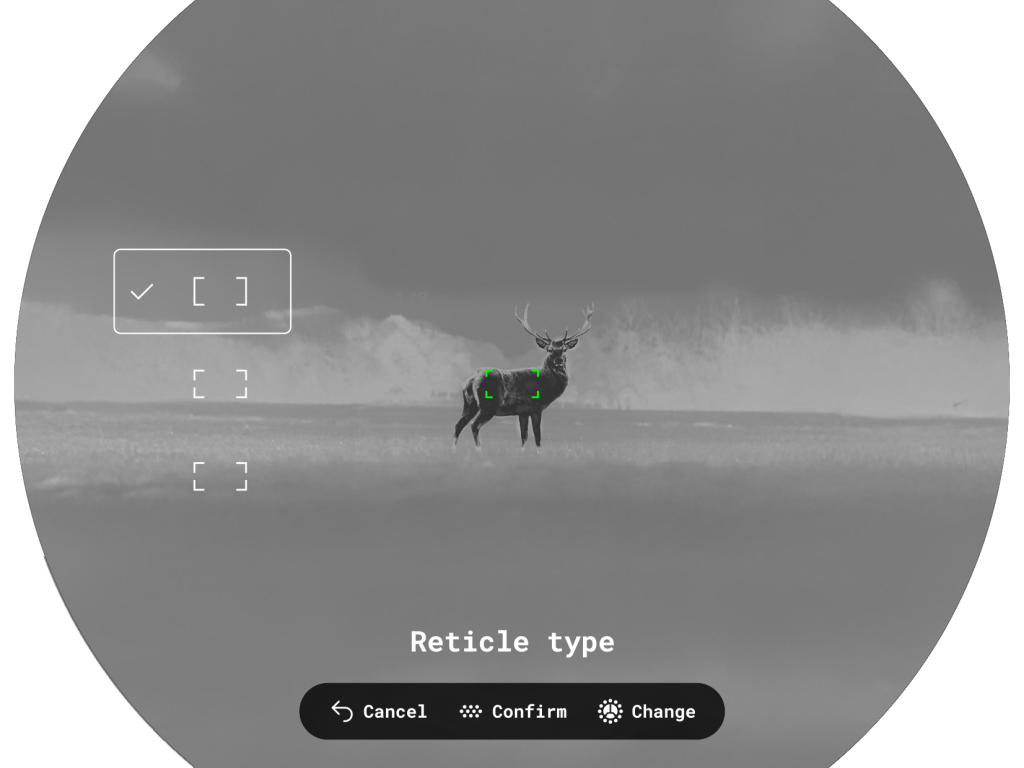
Reticle type
Reticle Type  menu item allows you to select one of the three reticle shapes
Target position angle
Function Target Position Angle  allows you to measure the angle of target location (angle of elevation). When the function is activated, the angle is shown continuously.

True distance
True Horizontal Distance  function allows you to measure true horizontal distance to a target based on the angle of elevation value.
When activated, the message THD will appear above the distance reading.

Picture-in-Picture
PiP (“Picture-in-Picture”) allows you to see a zoomed image simultaneously with the main image in a dedicated window.

- Turn on/off the PiP function with a long press of BACK button or in the main menu: Observation and Zoom Controls
 –> Picture-in-picture .
 - Change zoom ratio in the PiP window with a rotation of the controller ring .
- The zoomed image is displayed in a dedicated window, while the image in the rest of the screen is displayed at base magnification.
- When PiP is turned on, you can operate the discrete and continuous digital zoom. The magnification will take place only in the dedicated window.
- When PiP is turned off, the image is shown with the optical magnification set for the PiP function.


Zoom on button press
If  enabled, smooth zooming starts after pressing the BACK
  button and then rotating the controller ring.
If disabled, zoom level can be adjusted directly by rotating the controller ring without pressing the BACK button.
IR level
In digital and DUO modes, this menu item  lets you set the IR illuminator power level or switch it off.
External Ballistics
Ballistics activation
The item  enables/disables the Ballistic calculator function to show the recommended aiming point and correction values. For more information on using the function, see the section Ballistics calculator.

Ballistic profiles
This item  allows you to select one of five profiles (А, В, С, D, E) to use in the ballistics calculator.
Calculator units
Choose units for ballistic corrections  :
:
- MOA
- MRAD
- Click
- mm/cm (default)
- inch
Image Settings
Brightness
 allows adjustment display brightness from 0 to 20.
Contrast
 allows adjustment display contrast from 0 to 20.
Save thermal image settings
If  enabled, the device will restore the previously saved brightness and contrast values for the thermal channel when powered on again.
If disabled, default brightness and contrast values for the selected palette will be applied.
Available palettes
In this section, you can select colour palettes  that can be switched by pressing the MODE
  button.

The user can disable all palettes except one.
If the active palette is disabled, it will remain in use until the user presses the button. After that, the palette is removed from the switching cycle.
To preserve brightness and contrast values when switching palettes, activate Save thermal image settings .
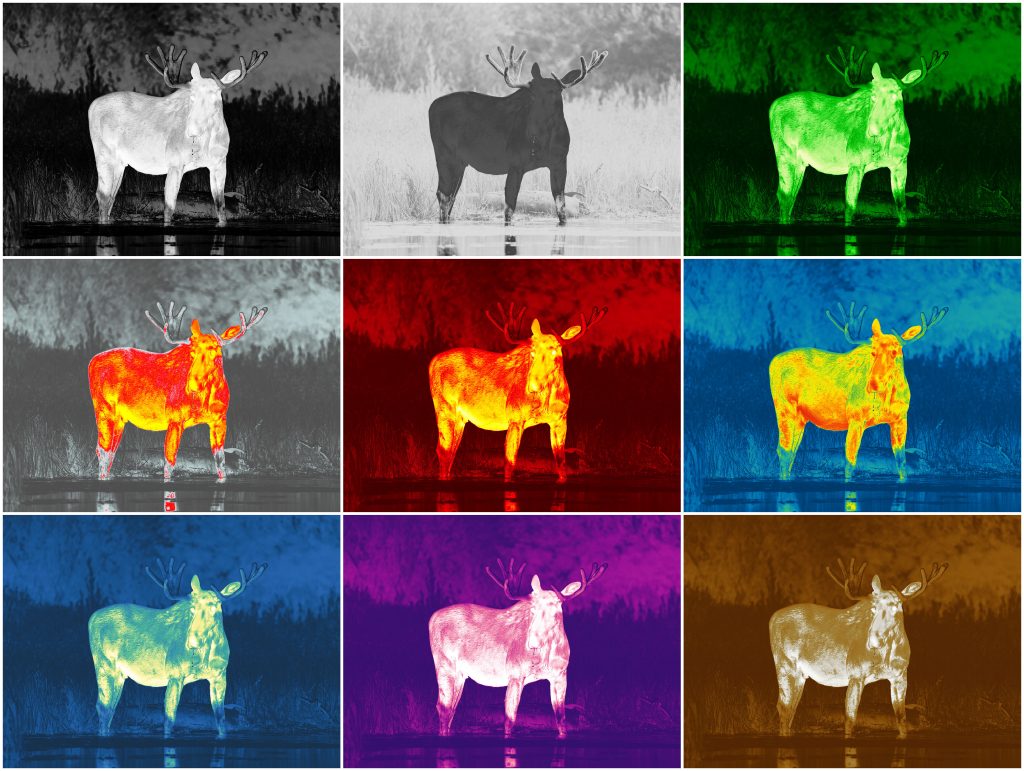
Available colour palettes:
- White hot
- Black hot
- Green
- Red Hot
- Red Monochrome
- Rainbow
- Ultramarine
- Violet
- Sepia
Amplification
The Normal  , High
  , Ultra
  sensitivity enhancement features are the latest in software algorithm offerings from Pulsar that enhance the quality of detection and object recognition, regardless of observation conditions. When the temperature contrast decreases due to conditions such as fog, precipitation or high humidity, increasing the amplification level can optimize the image picture.
To reduce digital distortion, activate the Smoothing in the main menu.
Option 1: Press and hold the MODE button to switch the amplification level.
Option 2: Choose amplification level in the main menu: Image settings  -> Amplification
  .
.
Smoothing
The Smoothing  function refines the image and makes the thermal picture appear smoother and more uniform. When smoothing is enabled, the image looks less grainy and more comfortable for long-term observation, especially on uniform backgrounds.
Display dimming
The Dimming function  is designed to reduce the brightness of the display when using the device in the dark to reduce eye strain.
The Interface brightness value in dimming mode will be retained when the function is turned on again.
Interface brightness
Adjusting the Interface brightness  helps ensure comfortable viewing in any lighting conditions. Increase brightness for daytime use or lower it at night to minimize glare and reduce eye strain.
Screen shape
The Screen shape  option allows the user to select the shape of the screen contour (Rounded, Circular) to adapt the interface to their individual preferences.
Note:
Photos and videos are always recorded in a rectangular shape, regardless of the selected screen shape.
Image stabilization
Image stabilization reduces image shake when observing handheld, especially at high magnification or during long observations.
Activation
- By long-pressing the Stabilization button on the device body.
- In the main menu: Image settings -> Image stabilization -> Activation
 .
.

Note: the image stabilization function is automatically switched off  during laser rangefinder operation.
Calibrate
If performance of Electronic Image Stabilization (EIS) decreases during long-term use, it is recommended to perform calibration  .
.
For this put device on the smooth surface and press “Calibrate”. It will take up to 10 seconds.

Device Settings
Bluetooth
Activate Bluetooth  module to connect the device to the SV Ballistics mobile App.
Bluetooth settings
1. Turn on the Bluetooth module inthe main menu: Device settings  -> Bluetooth .
2. Go to Device settings –> Bluetooth pairing  to activate pairing.

3. Turn on Bluetooth on your smartphone.
4. Connect your smartphone to the device using the Stream Vision Ballistics App (Devices tab > Connect Device button).
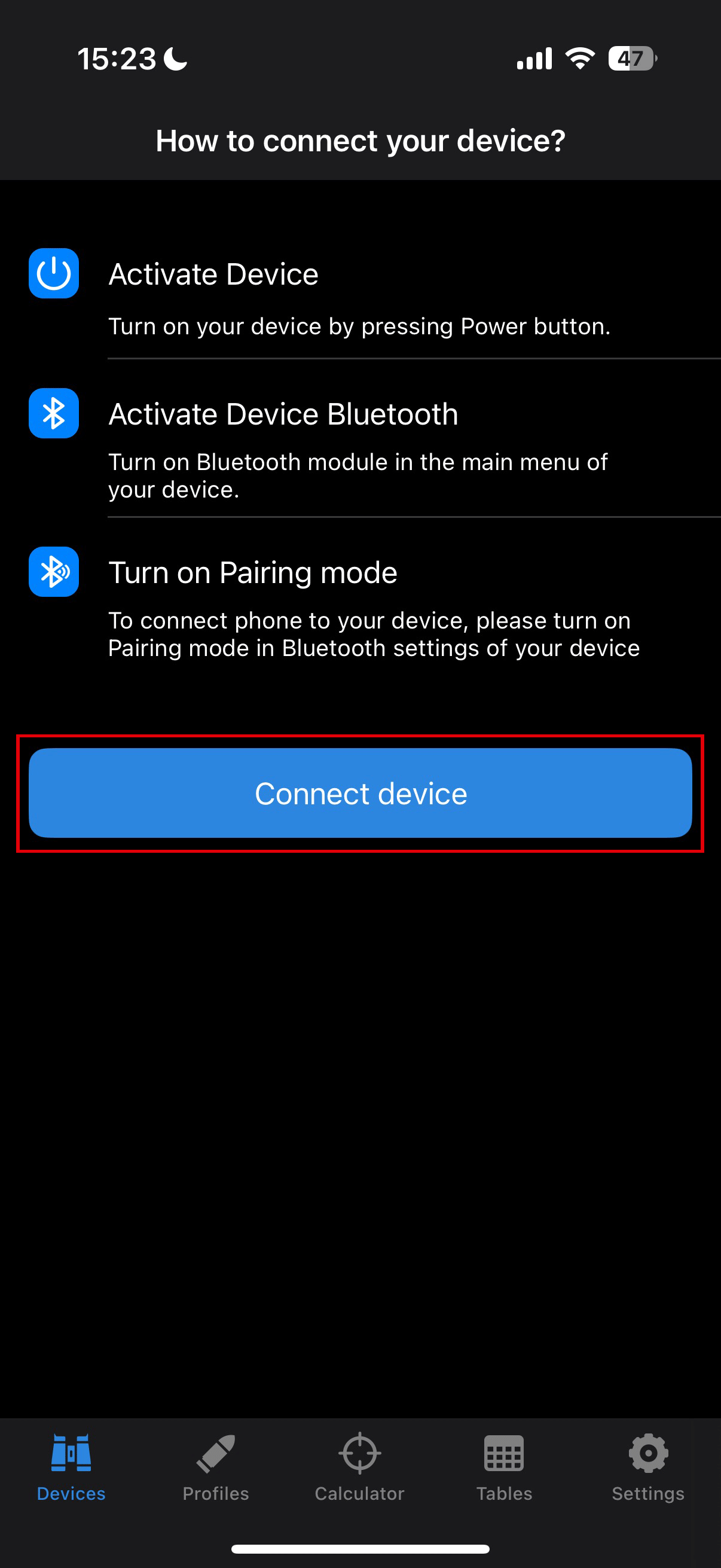
5. Click “Connect” next to your device.

6. Enter the code from the device screen in the Stream Vision Ballistics App and tap “Connect”.

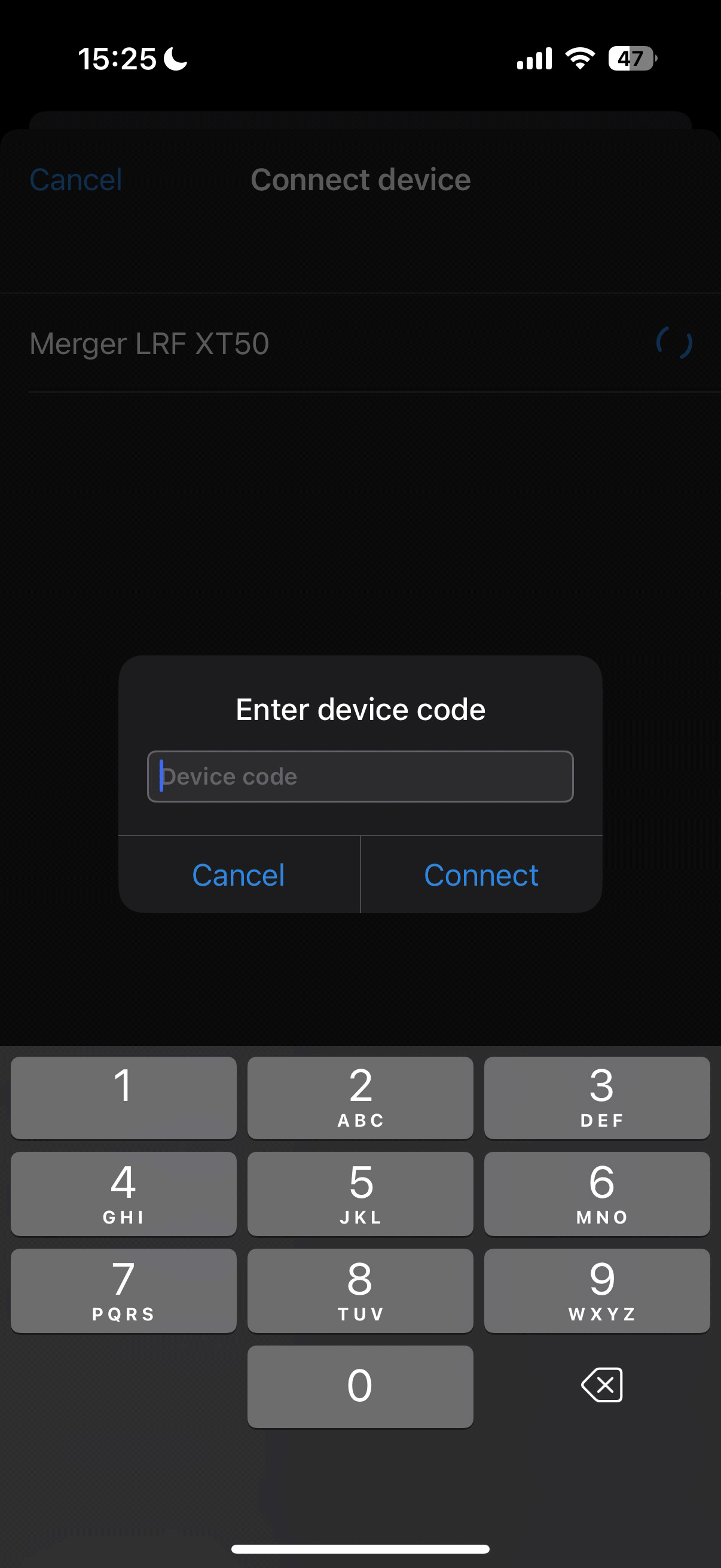
7. The blue Bluetooth icon  next to the device means that the device is connected.

Wi-Fi
Activate Wi-Fi  to connect the device to the Stream Vision 2 application on your smartphone. This enables remote control of the device and provides access to additional features via the app.
Wi-Fi Settings
Password Setup
This menu option  allows you to set a password for accessing your Pulsar device from an external device. The password is unique for each device.
Access Level Setup
This menu option  allows you to set the required access level for the Stream Vision 2 application:
- Owner: Full access to all device functions.
- Guest: Access to real-time video streaming only.
Wi-Fi Band
This setting  helps resolve smartphone connection issues in the following cases:
- If your smartphone does not support the 5 GHz Wi-Fi band, switch to 2.4 GHz.
- If there is interference from multiple Wi-Fi networks, switching between Wi-Fi bands can improve the connection between the device and your smartphone.
Calibration
Calibration  equalizes the microbolometer’s background temperature and eliminates image flaws such as vertical bars and phantom images on the thermal image.
There are three calibration modes: Automatic, Semi-Automatic and Manual:
Automatic
- The device calibrates itself automatically according to firmware algorithms.
- There is no need to close the lens cover; an internal shutter automatically covers the microbolometer.
- The user can also initiate calibration manually by pressing the Calibration button (as in SA mode).
- A countdown timer
 appears on the right side of the screen when 5 seconds remain before automatic calibration.

Semi-Automatic
- The user decides when calibration is needed (based on the observed image).
- Briefly press the Calibration button to start calibration.
- There is no need to close the lens cover; an internal shutter automatically covers the microbolometer.
Manual Mode
- Close the thermal imaging channel lens cover.
- Briefly press the Calibration button .
- Open the lens cover after calibration is complete.
Notes:
- During calibration, the image on the display may freeze for up to 1 second.
- The selected calibration mode is retained after restarting the device.
No-use shutdown
The No Use Shutdown  function automatically turns off the device after 30 minutes of inactivity in Power saving mode or Sleep mode. If no buttons are pressed and no actions are performed during this period, the device will power off to conserve battery life.
Control preference
The Control Preference  function allows you to adapt the button layout for left- or right-handed use.
When enabled, the device mirrors the button assignments, making it more convenient to operate with the left hand. When disabled, the standard (right-handed) button layout is used.
Note: Button icons printed on the device do not change and will not correspond to the reassigned functions when the mirrored layout is enabled.
Haptic vibro indication
This function  enables vibration feedback when the device is turned on or off, and when buttons are pressed.
Power saving mode
When Power Saving Mode  is on, the device helps save battery as follows:
Power Saving Mode
- The displays turn off if you move the device away from your eyes for more than 5 seconds.
- Video recording and streaming can continue if they were active.
- Wi-Fi and Bluetooth stay on.
- To turn the displays back on, just bring the device to your eyes or press any button.
- If video recording, streaming, or file transfer is not active, and you keep the device away from your eyes for more than 5 seconds, Power Saving Mode will automatically switch to Sleep Mode for maximum battery saving.
Sleep Mode
You can activate at any time by turning the switch on the device to the Sleep position, even if Power Saving Mode is off.

- The displays turn off.
- Wi-Fi and Bluetooth are turned off.
- IR illuminator and rangefinder are turned off.
- Video recording and USB streaming stop.
Media
Record with sound
This function allows you to enable the microphone  to record video with sound.
Video compression
This setting allows you to choose the level of video compression  to balance between file size and video quality.
ON: Standard compression is applied.
- Video files take up less space.
- You can store more videos on the device.
OFF: Minimal compression is applied.
- Video quality is higher.
- Video files are much larger and take up more space.
Note: Larger video file sizes result in shorter available recording times and may increase the download time for video files when using the Stream Vision 2 app.
Overlay media mode
This function  allows disabling all OSD overlay graphics in recorded photos and videos, leaving only PULSAR logo on the screen. Overlay remains visible on the display during recording. The Logo only option is useful for capturing photos and videos without auxiliary on-screen indicators.
Format media disk
This function  erases all files from the device’s internal memory.
Use this option to quickly clear all recorded videos and photos.
Formatting should be performed if a memory error occurs.
Note: All data will be permanently deleted and cannot be restored. Before formatting, make sure to transfer important files to another device.
System Settings
Language
This function  allows you to select the device’s menu language from the following options: English, German, Spanish, French, Russian, Italian, Portuguese, Dutch, Danish, Norwegian, Swedish, Polish, Czech, Hungarian, Lithuanian, Latvian, Bulgarian, Finnish, and Ukrainian.
Date
This function  lets you set the current date in the device.
The date is shown in the status bar and is used for naming videos and photos.
Time
This function  lets you set the current time on the device.
The time is shown in the status bar and is used for naming videos and photos.
You can choose between 12-hour and 24-hour formats.
Units of measurement
This function  lets you choose the units for distance displayed in the laser rangefinder widget. You can select either meters or yards.
Reset to default settings
This function  restores all device settings to their original factory values.
The reset cannot be undone. All your custom settings will be erased.
Note: When restoring the factory defaults, the date, time, and user pixel map are saved.
Image pixel repair
When using the thermal imager, you may notice defective (dead) pixels — bright or dark dots that do not change brightness.
Defective pixels on the microbolometer can increase in size relative to the digital-zoom power.
The Pixel Repair function allows you to mask these pixels on the image.
How it works:
- Go to the menu: System settings -> Image pixel repair -> Pixel Repair and use a movable marker to select a defective pixel on the display.
- A magnified area helps you precisely align the marker with the defective pixel.


- Move the marker by rotating the controller. To switch between vertical and horizontal movement, press the MENU button. The x and y coordinates are shown in the widget below the magnified area.
- Once aligned, remove (mask) the defective pixel by pressing the REC
 button. An “OK” message will confirm the action.
 - To save the pixel map and exit the menu, press the BACK button.
- You can repeat the process for other defective pixels.
- All masked pixels are saved in the device’s memory and added to the factory pixel map.
Note: While in the Pixel Repair menu, other device functions are temporarily unavailable.
Restore default pixel map
If needed, you can restore the original factory pixel map through the menu. This will remove all user-masked pixels and return the display to its original state.
Device information
This option  allows you to view important details about your device, including:
- Full name
- SKU number
- Serial number
- Firmware version
- Hardware version
- Service information
Functions
Digital Channel Modes
The digital channel supports the following viewing modes.
Select the mode depending on ambient lighting conditions.
To switch between digital modes, briefly press the button in Digital mode.
Day Color
Full-color image for observation in daylight conditions.
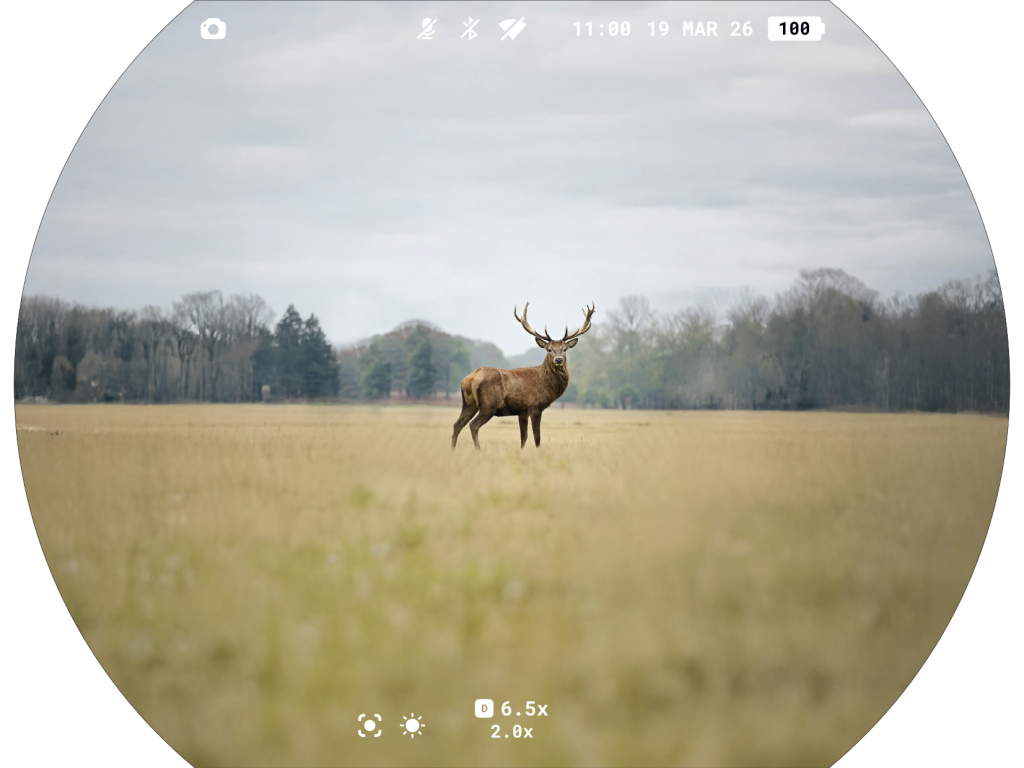
Twilight
Full-color image optimized for low-light conditions (twilight).
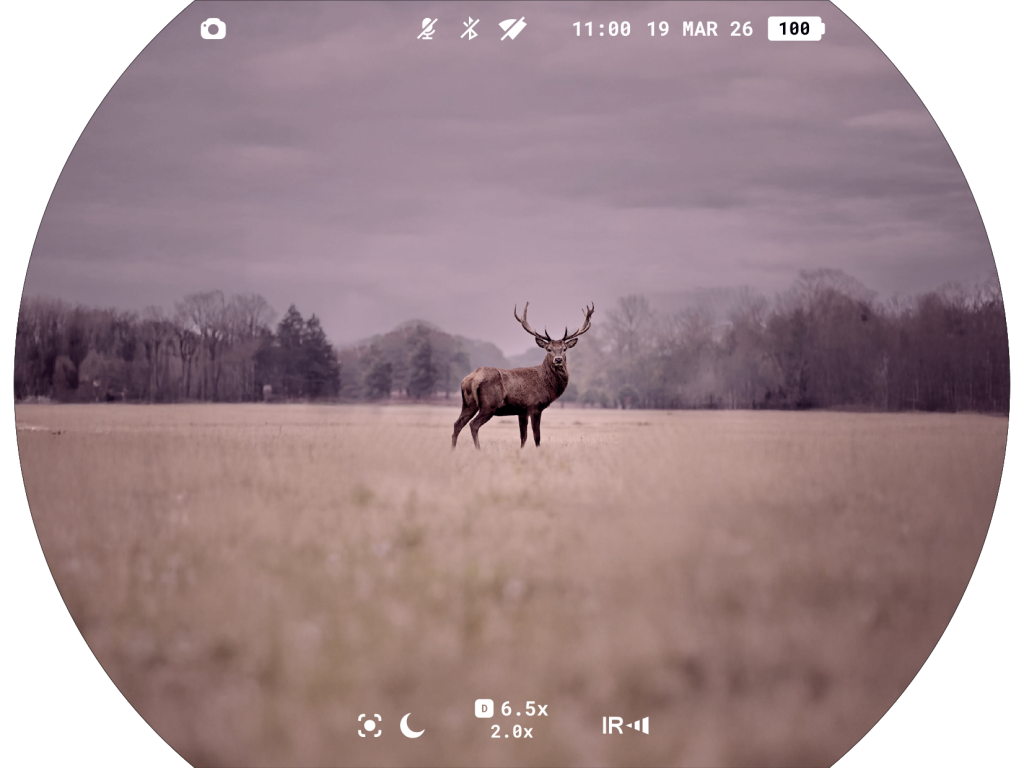
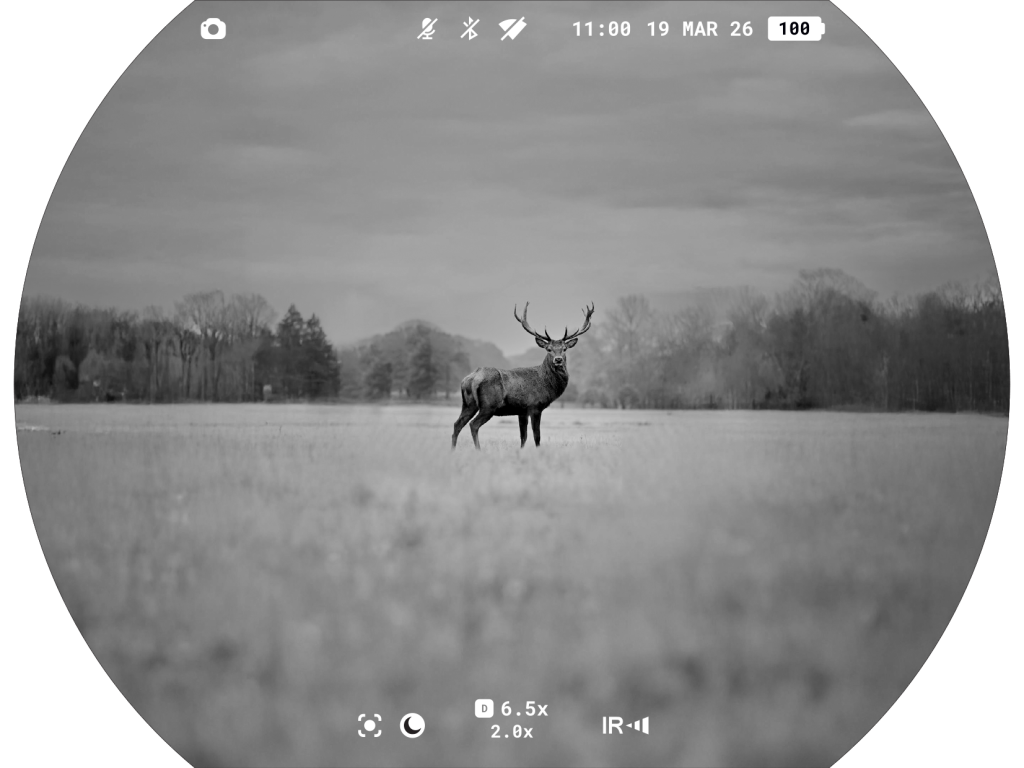
Night – Black & White
Monochrome black-and-white image for night observation.
Use of the IR illuminator is recommended.
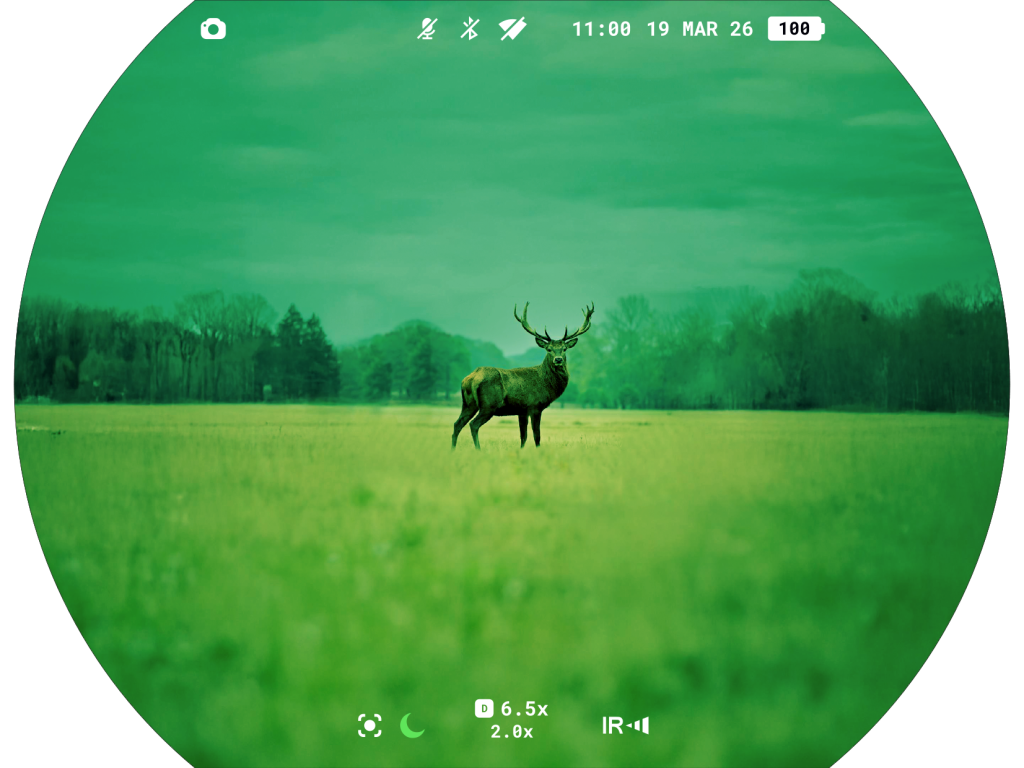
Night – Green
Monochrome green image for night observation.
Use of the IR illuminator is recommended.
Video Recording and Photography
Symbion LRF binoculars feature video recording and photography of the image being ranged to the internal memory card.
Before using the photo and video functions, setup the Date and Time in the System Settings  .
.
For information on how to watch recorded photos and videos, see the Stream Vision 2 user manual: Android, iOS.
The built-in recorder operates in two modes – Video and Photo.
Built-in recorder operates in two modes:
- Photo (photography; the icon
 is displayed in the upper left corner of the image).
- Video (video recording; the icon
 is displayed in the upper left corner of the image, the total remaining recording time is given taking into account the current resolution in the HH:MM format (hours:minutes).
Switching between the operating modes of the video recorder is done by long pressing the REC  button. Switching between the modes is cyclical (Video–> Photo–> Video…).
Photo mode. Capturing an image
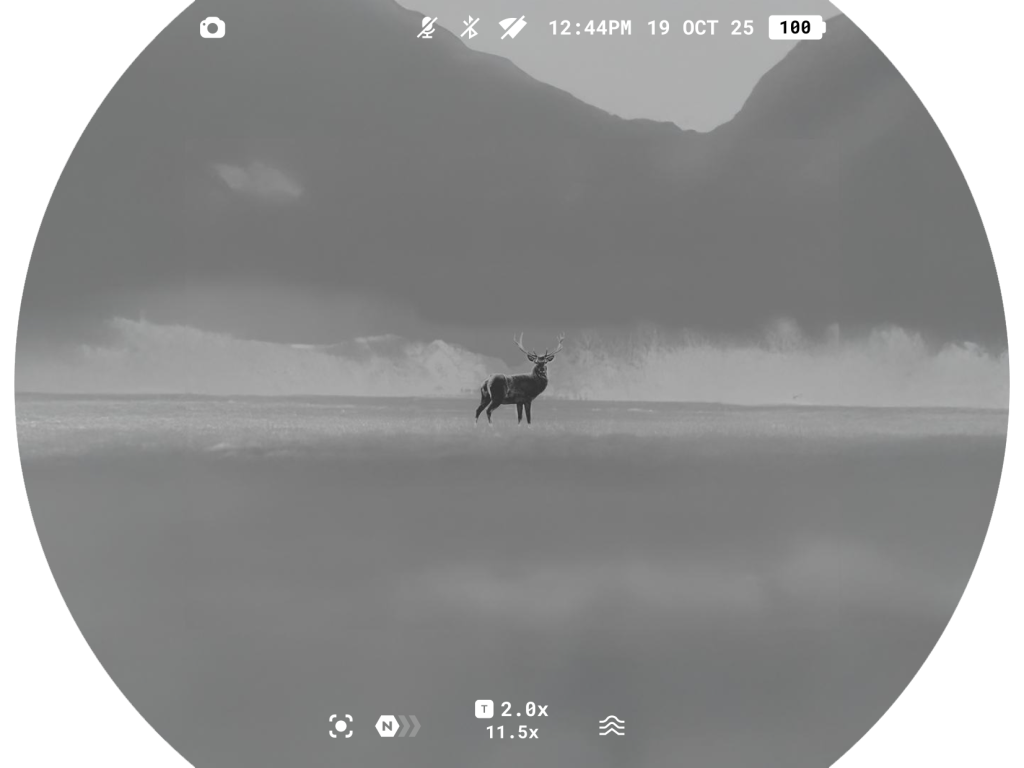
1. Switch to the Photo mode with a long press of the REC button.
2. Press the REC button briefly to capture a photo. The icon  flashes – the photo file is being saved to the built-in SD card.
Video mode. Recording a video
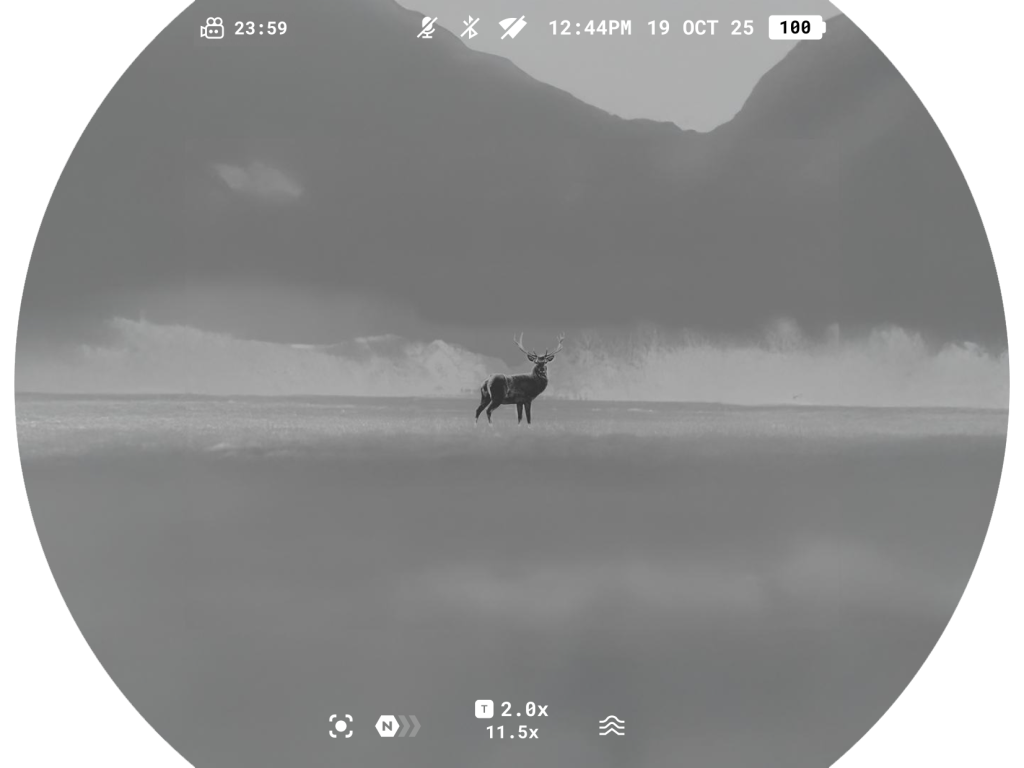
1. Switch to the Video mode with a long press of the REC button.
2. Press the REC button briefly to start video recording.
3. When the video recording starts, the icon  will disappear, instead of it an icon with a timer in the MM:SS (minutes:seconds) format will appear
  .
.
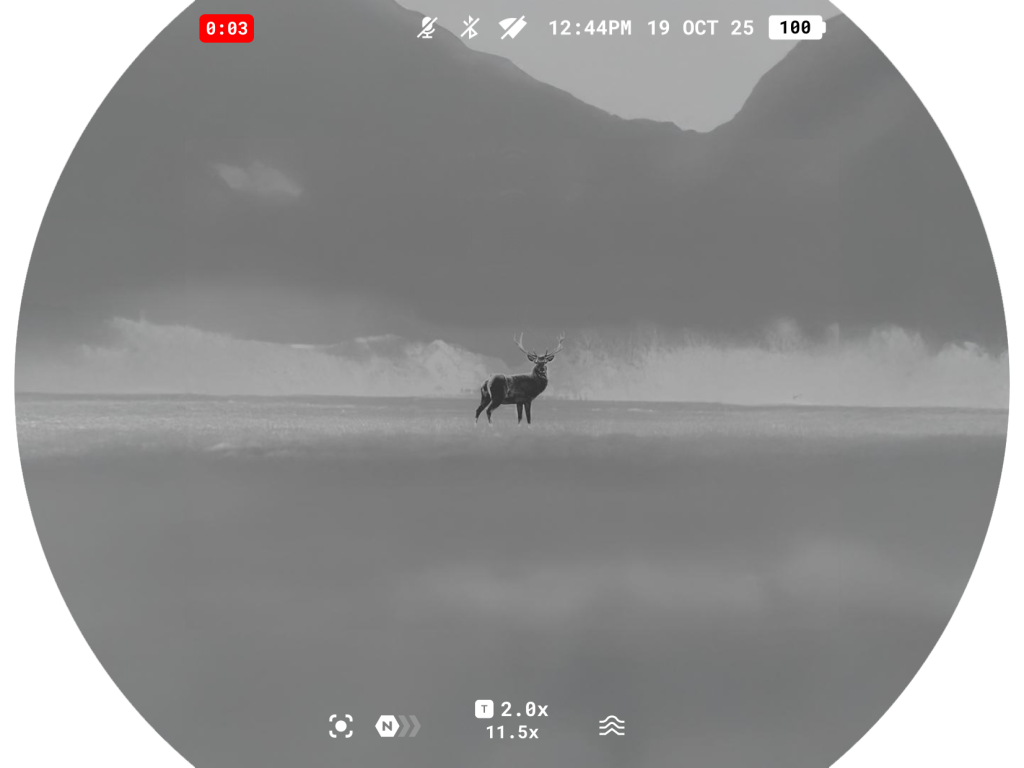
4. Pause/continue recording by briefly pressing the REC button.
5. Press and hold the REC button to stop video recording.
Video files are stored in the built-in memory card:
- After turning off the video recording;
- Upon powering the device off if recording was on;
- When the memory card is overfilled during recording (Memory Full message appears).
Notes:
- You can enter and navigate the menu during video recording.
- Recorded videos and photos are saved to the built-in memory card of the device in the format img_xxx. jpg (for photos); video_xxx. mp4 (for video).
- Videos are recorded in clips with a maximum duration of 5 minutes. The number of recorded files is limited by the capacity of unit’s internal memory and video compression ratio.
- Regularly check free memory within the built-in memory card and move the footage to other storage media to free up the memory card space.
- In case of a memory card error, you can use the format function in the Media section of the main menu.
- When the Power saving mode is activated, video recording continues to run in the background.
Using the Laser Rangefinder
The binoculars are equipped with a built-in rangefinder, allowing you to measure distance to objects up to 1500 m away.
How the rangefinder works
1. Turn on the device, set up image according to section Getting Started.
2. Briefly press the LRF  button to measure the distance. The rangefinder reticle will appear in the centre of the image. In the bottom of the display you will see distance in meters (or yards – depending on settings).

3. Point the rangefinding reticle at an object and press the LRF button.
Note: if the rangefinder is idle longer than for 10 seconds, it turns off automatically.
Operation in SCAN mode
1. To measure distance in scanning mode, hold down the LRF button for longer than two seconds. Measurement readings will be changing in real time as you point the binoculars at different objects. The text in the LRF widget will become green.

2. If measurement fails, dashes will appear on the display.
3. To turn off the rangefinder, press LRF button again.
4. In 10 seconds of inactivity (no measurement is taken) the rangefinder turns off, the rangefinding reticle with readings disappears from the display.
Notes:
- The rangefinding reticle can be changed in the Observation & Zoom Controls -> Laser rangefinder -> Reticle Type .

- Units of measurement (meters or yards) can be changed in see the System Settings -> Units of measurement section.
Additional Information:
- Accuracy of measurement and maximum range depend on the reflection ratio of the target surface, the angle at which the emitting beam falls on the target surface and environmental conditions. Reflectivity is also affected by surface texture, color, size and shape of the target. A shiny or brightly colored surface is normally more reflective than a dark surface.
- Measuring range to a small sized target is more difficult than to a large sized target.
- Accuracy of measurement can also be affected by light conditions, fog, haze, rain, snow etc. Ranging performance can degrade in bright conditions or when ranging towards the sun.
Ballistics calculator
1. Install the Stream Vision Ballistics app from Google Play or AppStore.
2. Go to Profiles tab.
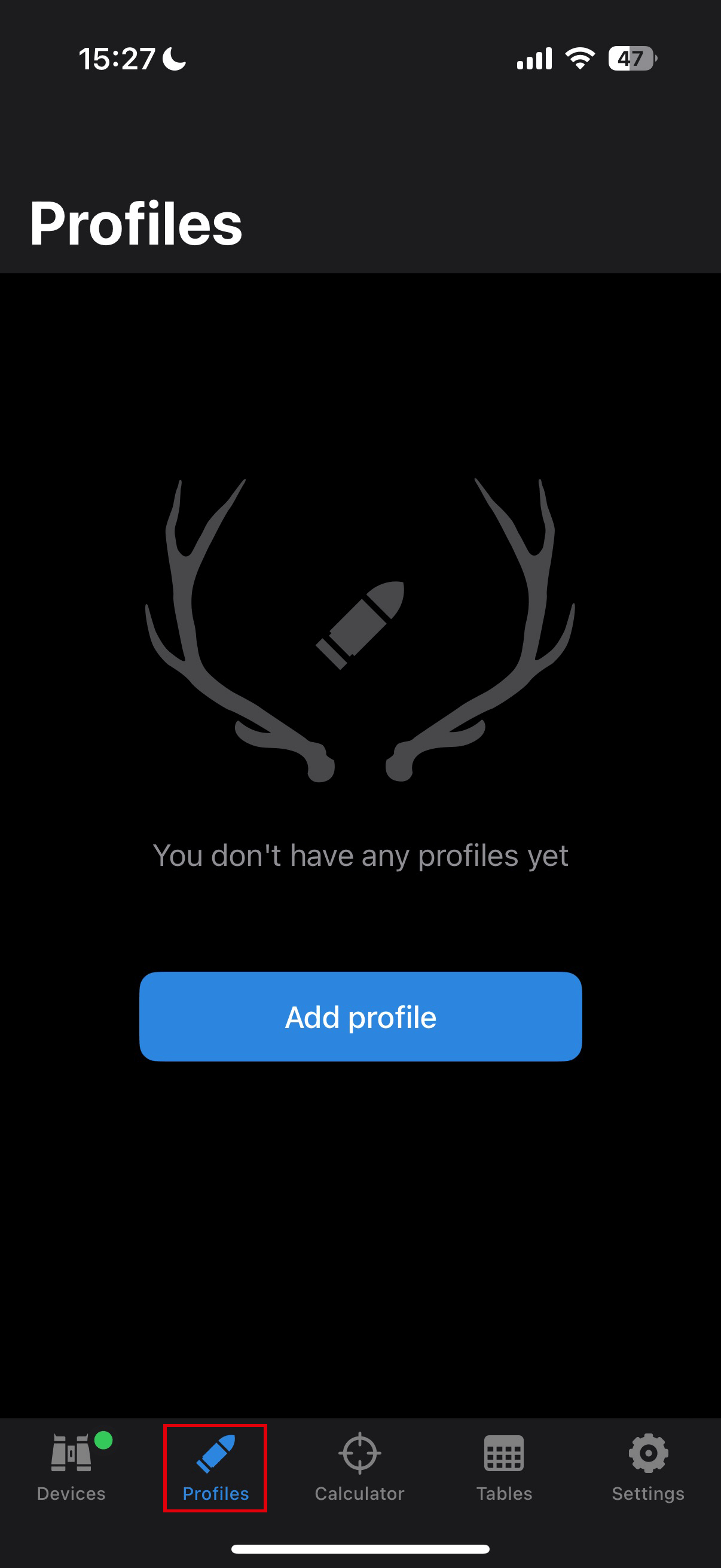
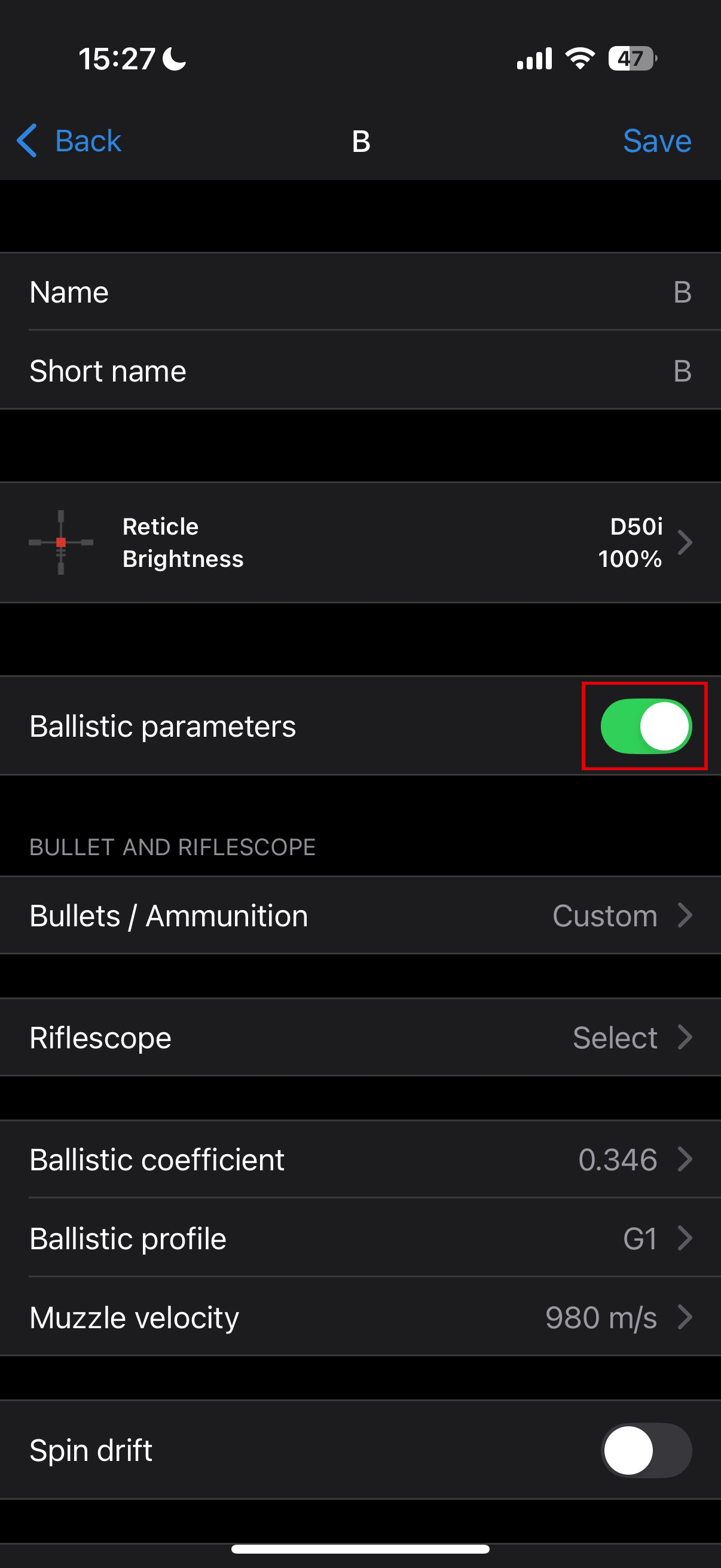
3. Create a profile for your riflescope, ammunition and zeroing distance. Make sure that “Ballistic parameters” switch is on. If your ammo is not on the list, you can enter its parameters manually. The more parameters you specify, the more accurate the recommended point of aiming will be.
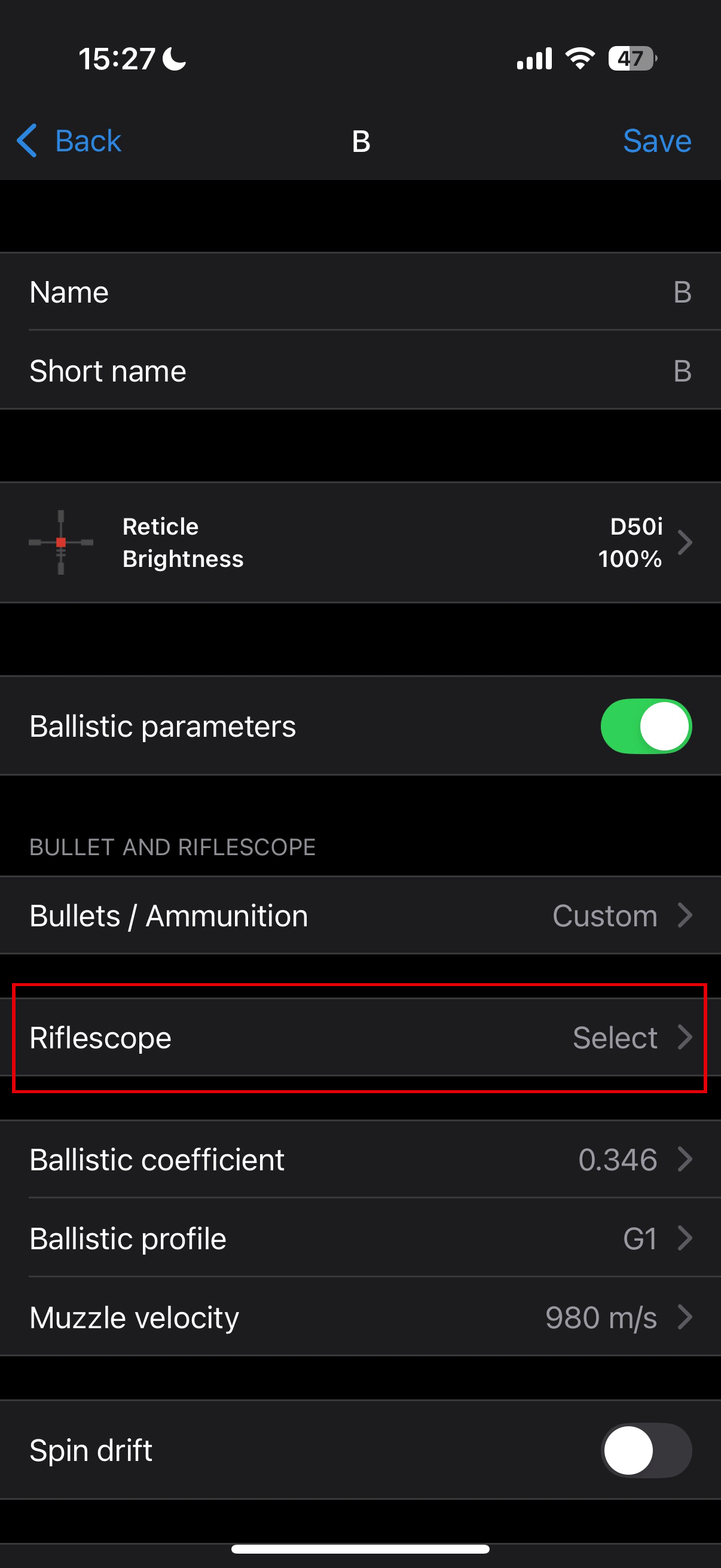
If you select a riflescope model, you will be able to display the correction values in clicks.
4. Adjust the temperature, pressure and humidity of the environment while zeroing your riflescope.
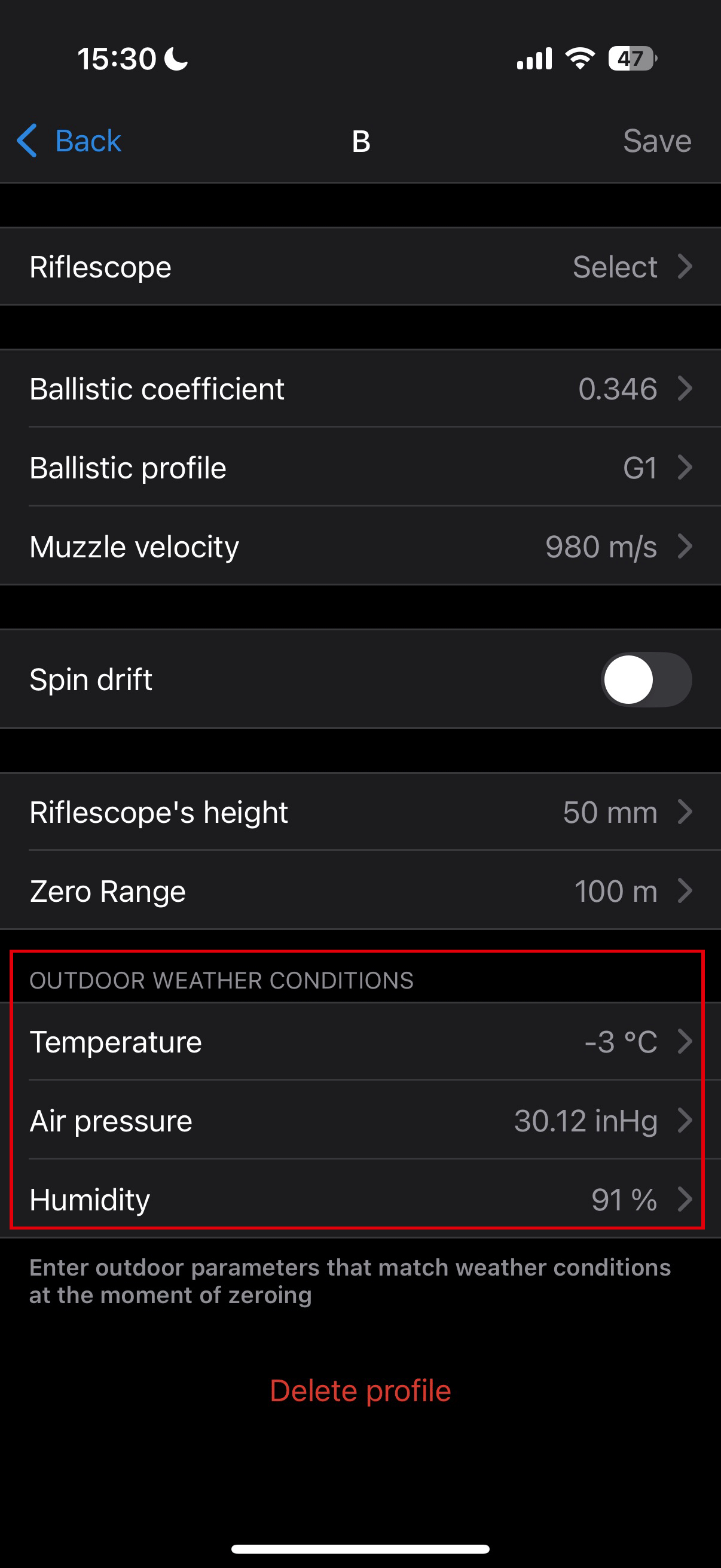
5. Enter a profile name and click save.
6. Connect your device to your smartphone using Bluetooth.
7. Load the profile into the device.
To do this, go to the “Devices” tab –> Select your device –> “All device profiles” -> click  on the profile you want to replace and select the created profile from the list.
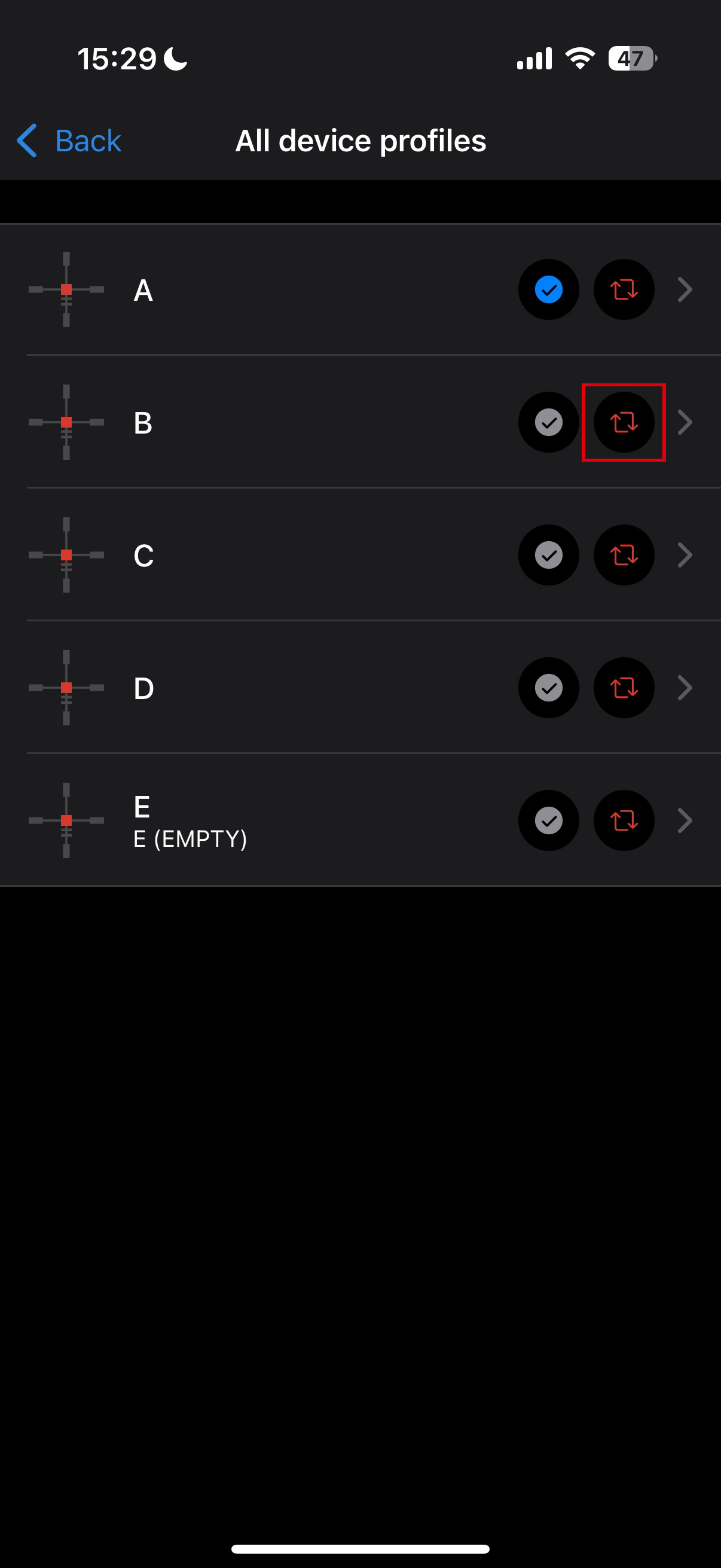
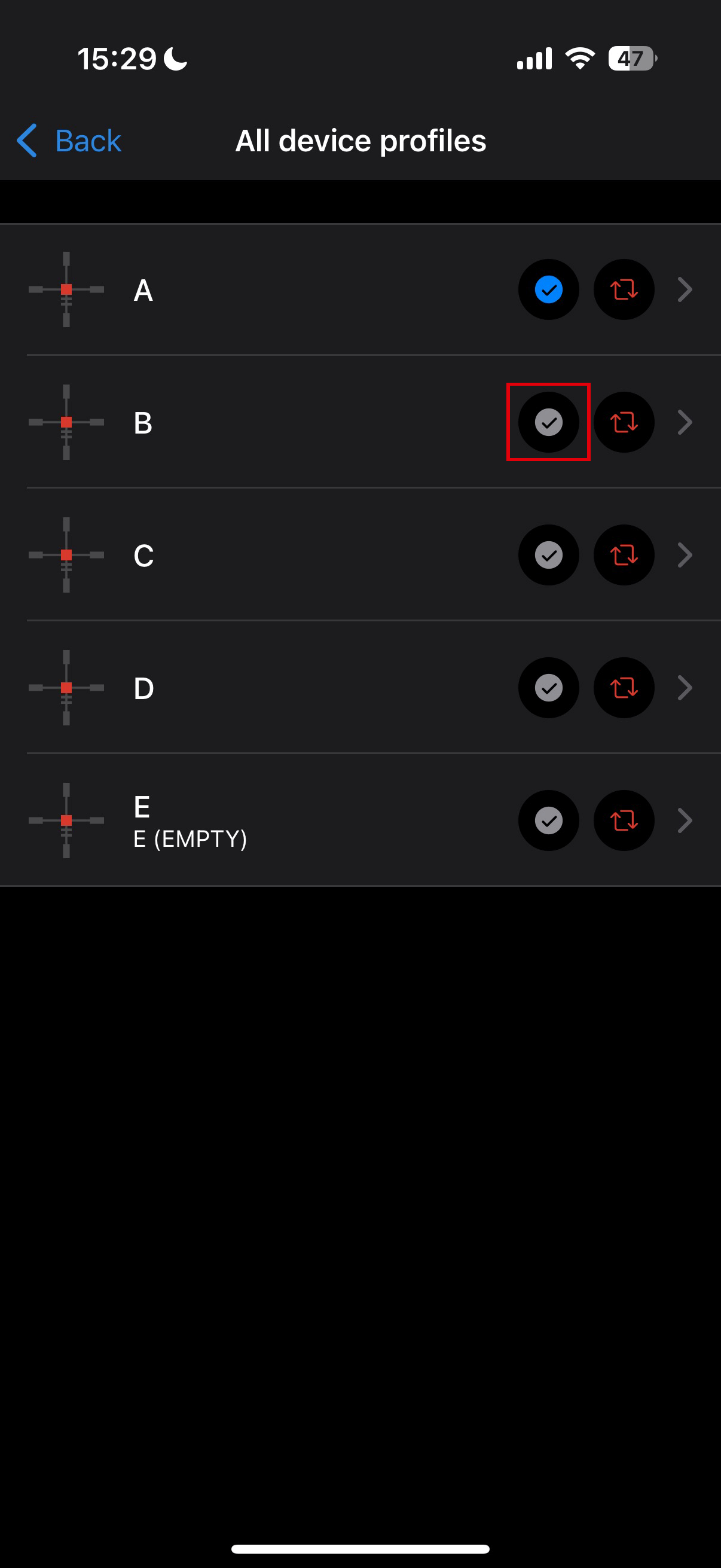
8. Set the status to “Active” for the ballistic profile. To do this, click on the button  next to the desired profile, or select it in the profile selection menu in the device.
9. Make sure that the Activation option is enabled in the device’s External Ballistics  menu.
menu.

10. Check the accuracy of your profile settings with a test shot at the shooting range.
Note: profiles for different types of ammunition must be zeroed separately.
11. To activate the use of weather data in your geolocation during the shot, go to the “Devices” tab -> Select your device -> “Outdoor”.

In the External Ballistics section of the main menu, you can configure the following settings of the ballistic calculator:
- Turn on/off the ballistic calculator
- Select a ballistic profile
- Choose correction units
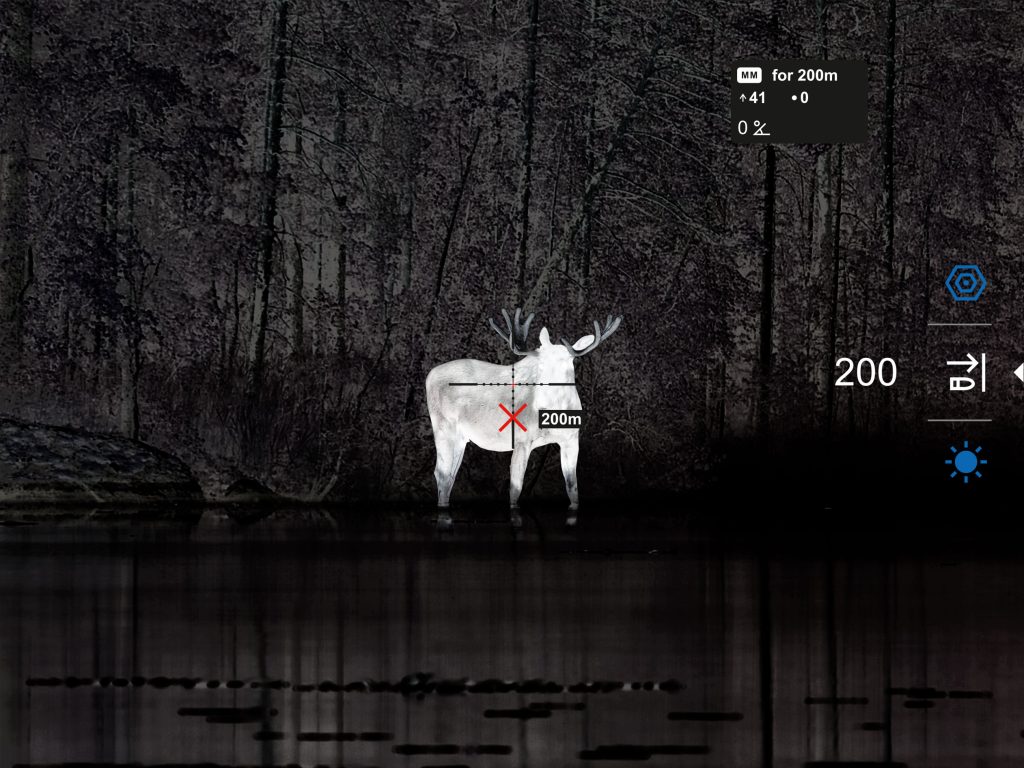
12. Now when you measure distance with the rangefinder, a ballistic calculator widget will appear on the display with correction values in the selected units.
This function is most useful when used with optical scopes. You can set the corrections by rotating the (windage/elevation) turrets for aiming.
Also, if your riflescope uses a Mil Dot reticle, you can shift it during aiming by the values of these corrections.
Pulsar riflescopes (Thermion 2 Pro/Duo/XG, Thermion 2 LRF, Talion, Digex C50) already have a built-in manual ballistic calculator. Therefore, there will be enough to measure the distance with Symbion LRF and set it in the quick menu of the riflescope for the ballistic profile, having previously loaded it into the riflescope via SV Ballistics application.
Stream Vision Ballistics Manual
Discrete Digital Zoom
The device allows you to quickly increase the basic magnification (please refer to the Magnification line in the Specifications table).

- To operate the discrete digital zoom, press successively the BACK button.
- The digital zoom will not be saved after the device is restarted.
Wi-Fi Function
The device has a function enabling wireless communication with external devices (smartphone or tablet) via Wi-Fi.
- Turn on the wireless module in the main menu: Device Settings
 > Wi-Fi .
Wi-Fi operation is shown in the status bar as follows:
| Status bar indication | Connection status |
 |
Wi-Fi is off |
 |
Wi-Fi activated by the user,
Wi-Fi in the device is being activated |
 |
Wi-Fi is on, no connection with device |
 |
Wi-Fi is on, device connected |
- Your device is detected by an external device as Symbion_[serial number].
- After entering the password on a mobile device (see Password Setup subsection of the Wi-Fi Settings section for more information on setting a password) and connection is established, the icon in the status bar will change to
 .
. - The Wi-Fi function will turn off automatically if there is not enough battery power for Wi-Fi.


Installing the Device on a Tripod

- Attach the tripod adapter to the mounting socket (1).
- Screw the adapter handle (2) clockwise until it is securely tightened.
- Mount the device with the adapter onto the tripod. The adapter is compatible with Arca-Swiss mounts.
USB Connection
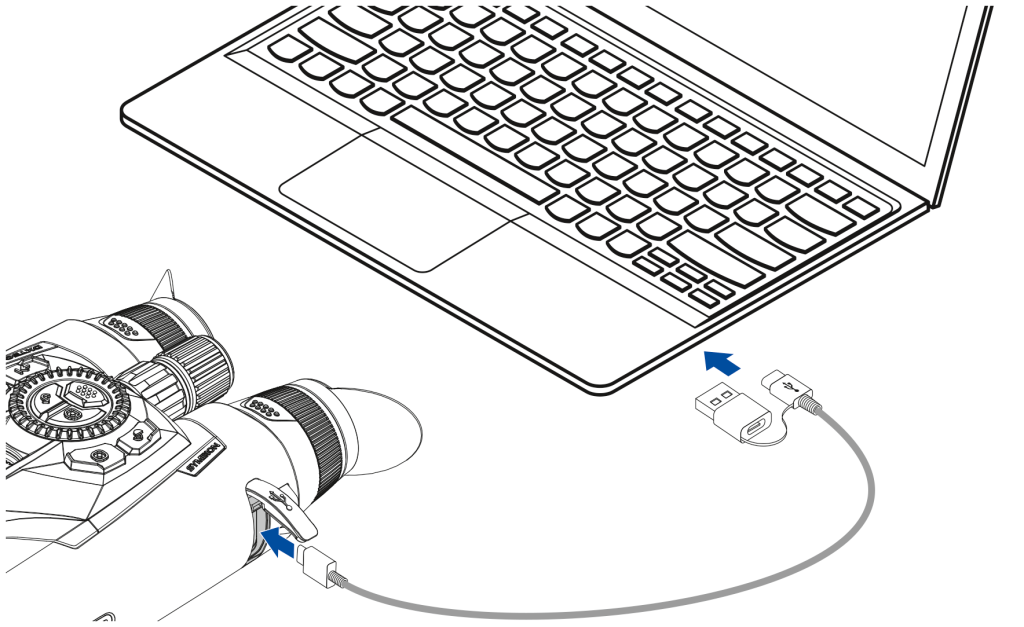
1. Connect one end of the USB cable to the USB Type-C connector of the device, the other one to the USB port on your computer using a USB Type-A adapter.
2. Turn the device on (device that has been turned off cannot be detected by your computer).
3. Your device will be detected by the computer automatically; no drivers need to be installed.
4. Three connection modes will appear on the image: Device charging, File access (external memory) and Video stream.
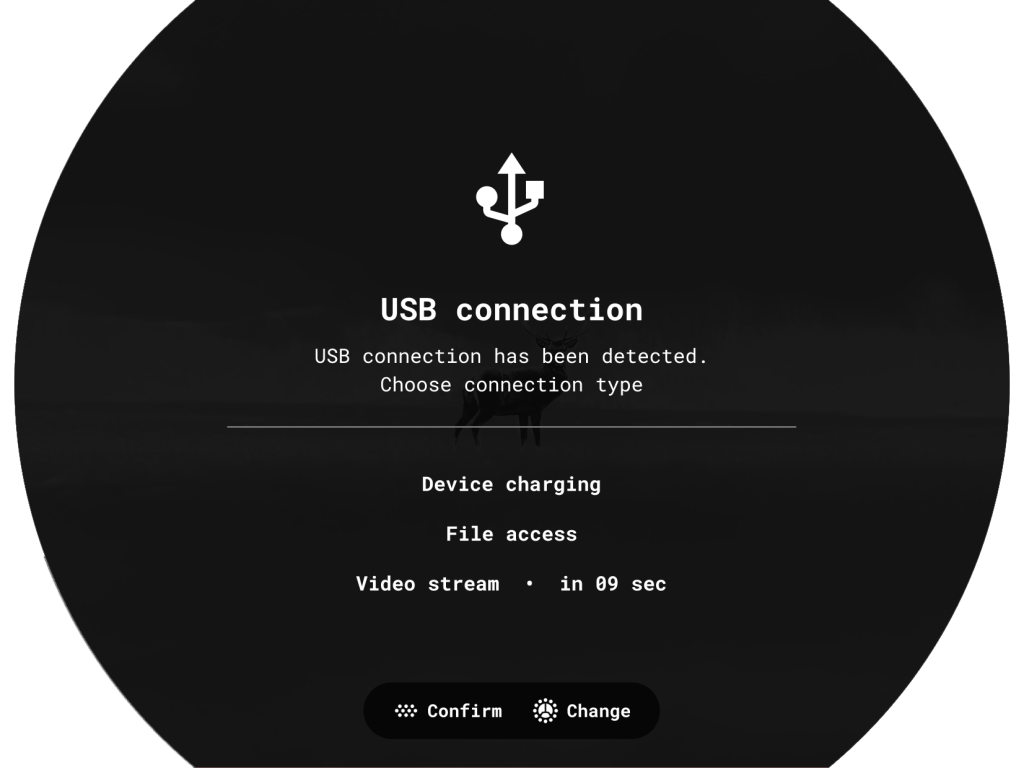
5. Select connection mode by rotating the controller ring  .
.
6, Confirm selection with a short press of the MENU button.
Device charging
- In this mode, when a computer is used as an external power supply, the icon appears in the status bar. The device will continue operating and all functions are available.
- The Battery pack installed in the device is not being charged!
- A battery recharge feasibility depends on your computer’s USB port.
- When the USB is disconnected from the device connected as the Device charging mode, the device continues operating from the rechargeable batteries if they are sufficiently charged.
File access
- In this mode the device is detected by the computer as a flash card.
- This mode is designed for work with the files saved in device’s memory. The device’s functions are not available in this mode; the device turns off automatically.
- If video recording was in progress when connection was made, recording stops and video is saved.
- If the device is in File access mode and is disconnected from USB, the device will remain on.
Video stream
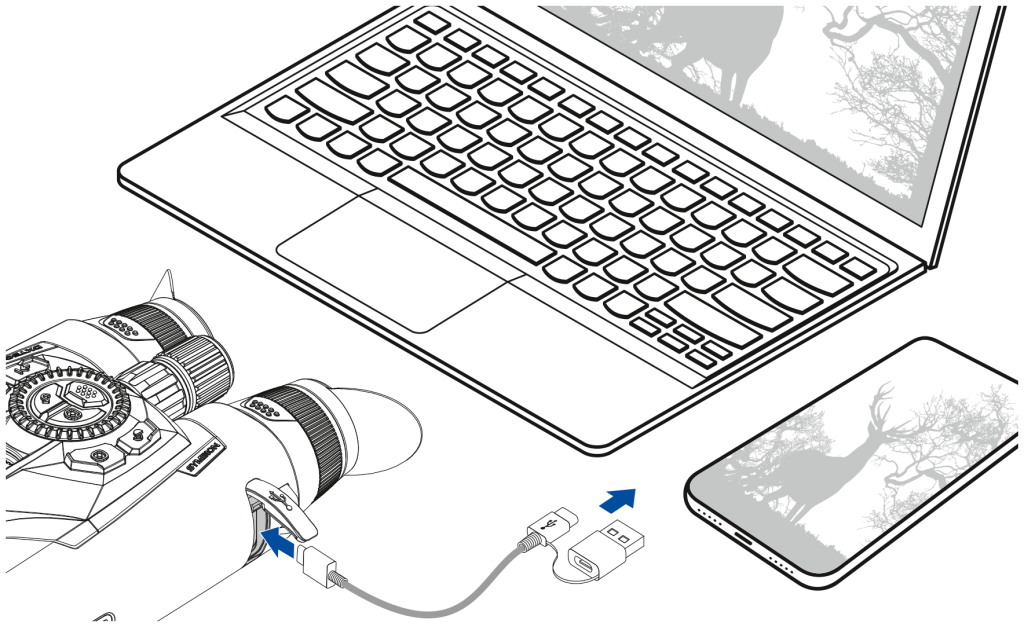
The device can be connected to PC or smartphone via USB Type-C cable.
The device is recognized as a web camera and accessed via any app that can work with web cameras. Signal from USB has better quality and latency and can be recorded or edited with software on the connected device.
During the video stream it is possible to record the observed picture. Activation of video recording is only available from the device itself by briefly pressing the REC button.
NOTE! Feature is supported only with iPhones that have USB Type-C port.
To view the video stream, use any application (on desktop or mobile platforms) that supports the UVC video standard.
Image transfer latency may occur in some applications. To reduce latency, disable the buffer in the application settings.
Software
Stream Vision 2
Install the Stream Vision 2 application to download files, update firmware, control the device by remote control and broadcast images from your device to a smartphone or a tablet via WiFi.

You can find further guidelines on Stream Vision 2 here.
Download from Google Play
Download from App Store
Find answers to frequently asked questions about using Stream Vision 2 here.
Stream Vision 2 Manual
Stream Vision Ballistics

The Stream Vision Ballistics app is a full-featured mobile ballistic calculation tool for accurate longer-range shooting. You can pair the app with supporting Pulsar device or any daytime scope. We use proprietary algorithms to provide accurate, flexible, and reliable point-of-impact suggestions. To get them working, create a ballistic profile (or multiple) and enter the required data.
Download from Google Play
Download from App Store
Stream Vision Ballistics Manual
Firmware Update
- Download the free Stream Vision 2 App in Google Play or App Store.
- Connect your Pulsar device to your mobile device (smartphone or tablet).
- Launch Stream Vision 2 and go to section “Settings”.
- Select your Pulsar device and press “Check firmware update”.
- Wait for the update to download and install. Pulsar device will reboot and will be ready to operate.
Important:
- if your Pulsar device is connected to a phone or mobile device, please turn on mobile data transfer (GPRS/3G/4G) to download update;
- if your Pulsar device is not connected to your phone or mobile device but is already listed in “Settings” > “My devices” section, you may use Wi-Fi to download update.
Find answers to frequently asked questions about using Stream Vision 2 here.
Is your firmware up to date?
Click here to check the latest firmware for your device.
Maintenance
Technical Inspection
It is recommended to inspect your device before each use. Check the following:
- The device should be free of any cracks or deformations.
- The lenses and protective glass should be free of cracks, grease, dirt or debris.
- The battery level of the device should be full. Electrical sockets should be free of salts, oxidation, or other debris.
- All controls should be responsive.
Technical Maintenance
Maintenance should be carried out at least twice a year and should include the following steps:
- Wipe the exterior surfaces of metal and plastic parts with a cotton cloth. Do not use chemically active substances, solvents, etc. as these will damage the paint.
- Clean the electric terminals of the Battery Pack and device’s battery slot using a grease-free organic solvent.
- Inspect the following optical components for cleanliness and damage:
-
- Eyepiece lenses
- Objective lenses
- Protective glass of the IR illuminator
- Protective glass of the laser rangefinder
If necessary, remove dust and sand using a non-contact method whenever possible.
Clean the exterior surfaces of the optics only with cleaning agents specifically designed for optical components.
- Avoid getting repellent on the housing of the device. This may damage the appearance of the housing coating.
Storage
- Always store the device in its carrying case in a dry, well-ventilated space.
- Remove the Battery Pack for long-term storage.
Troubleshooting
For technical assistance, please submit a request through our Support page.
The device does not turn on
Possible cause
The batteries are completely discharged.
Solution
Charge the batteries.
Device malfunction
Solution
In case of any malfunctions during operation, try resetting the device by long pressing the DUO button for 10 seconds.
The device does not operate on external power supply
Possible cause
USB cable is damaged.
Solution
Replace USB cable.
Possible cause
The external power supply is discharged.
Solution
Charge the external power supply.
The thermal image is blurry, with vertical stripes and uneven background
Possible cause
Calibration is required.
Solution
Carry out calibration according to Calibration section.
Black screen after calibration
Solution
If the image does not clear after calibration, you need to recalibrate.
When the device is turned on, the calibration frequency is at first higher, then decreases (if the automatic calibration mode is enabled)
Possible cause
After turning on the device, it takes some time for the microbolometer temperature to stabilize. This is normal and is not a defect.
Colored lines appeared on display or image has disappeared
Possible cause
The device was exposed to static electricity during operation.
Solution
After exposure to static electricity, the device may either reboot automatically, or require turning off and on again.
The image is too dark
Possible cause
Brightness or contrast level is too low.
Solution
Adjust the brightness or contrast level in the Quick Menu.
Poor image quality / Detection range reduced
Possible cause
Problems described may arise in adverse weather conditions (snow, rain, fog etc.).
The device is not focused
Possible cause
Wrong settings.
Solution
Adjust the device according to the Getting Started section.
Check the outer surfaces of the lenses and the eyepieces and, where necessary, wipe away dust, condensation, frost, etc. In cold weather, you can use special anti-fogging coatings (e.g., the same as for corrective glasses).
Smartphone or tablet cannot be connected to the device
Possible cause
Password in the device was changed.
Solution
Delete network and connect again inserting the password saved in the device.
Possible cause
There are too many Wi-Fi networks in the area where the device is located which may cause signal interference.
Solution
To ensure stable Wi-Fi performance, move the device to an area with few or no Wi-Fi networks.
Solution
Switch the device’s Wi-Fi band.
Possible cause
The device has a 5 GHz network enabled, but the smartphone only supports 2.4 GHz.
Solution
Switch the device’s Wi-Fi band to 2.4 GHz.
Wi-Fi signal is missing or interrupted
Possible cause
Smartphone or tablet is out of range of a strong Wi-Fi signal. There are obstacles between the device and the smartphone or tablet (e.g., concrete walls).
Solution
Relocate smartphone or tablet into the Wi-Fi signal line of sight.
The thermal image of the object being observed is missing
Possible cause
The object is behind glass, which obstructs thermal vision.
Solution
Remove the glass.
There are several light or black dots (pixels) on device’s displays or Microbolometer
Solution
The presence of such pixels is associated with the manufacturing technology of displays and microbolometer. It is not a defect.
When using the device at below zero temperatures the image quality is worse than at positive temperatures
Possible cause
In warm climates, objects in the background of a thermal image heat up differently because of thermal conductivity, generating a high temperature contrast and a sharper thermal image.
In cold climates, objects in the background of a thermal image will cool down to roughly the same temperature, which leads to a greatly reduced temperature contrast and a degraded image quality. This is normal for all thermal imaging devices.
Rangefinder will not measure distance
Possible cause
There is an object in front of the receiver or emitter lens preventing signal transmission.
Solution
Make sure that: the lenses are not blocked by your hand or fingers; the lenses are clean.
Possible cause
The device is not being held steadily when measuring.
Solution
Keep the device steady when measuring.
Possible cause
Distance to the object exceeds 1500 m.
Solution
Pick an object at a distance not longer than 1500 m.
Possible cause
Low reflection ratio (for example, tree leaves).
Solution
Pick an object with higher reflection ratio (see point Additional Information in section Using the Laser Rangefinder.
Large measurement error
Possible cause
Inclement weather conditions (rain, mist, snow).
Possible cause
Measurement distance is less than 10 m.
Solution
Perform the measurement at a distance greater than 10 m.
There is no thermal imaging or digital image
Possible cause
Lens cover closed.
Solution
Open the covers of the thermal imaging and digital channels.
Legal Compliances and Disclaimers
Attention! Symbion multispectral imaging binoculars require a license if exported outside your country.
Electromagnetic compatibility. This product complies with the requirements of European standard EN 55032: 2015, Class A.
Caution: operating this product in a residential area may cause radio interference.
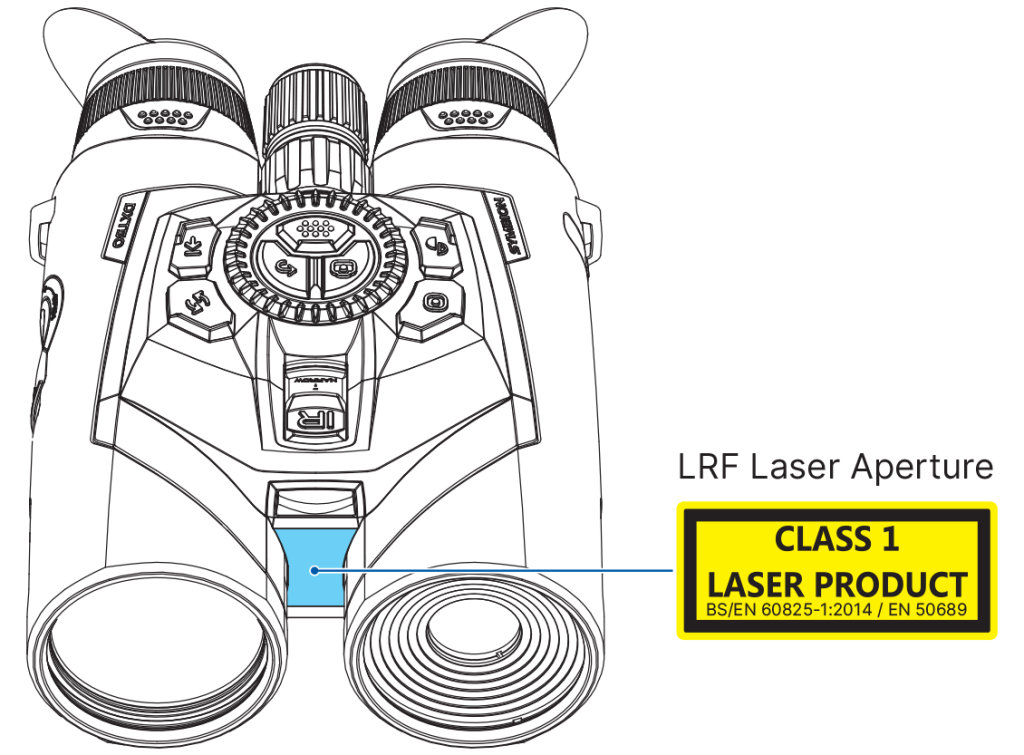
Caution: use of controls or adjustments or performance of procedures other than those specified herein may result in hazardous radiation exposure.
Updates of the Product. The manufacturer reserves the right at any time, without mandatory prior notice to the Customer, to make changes to the package contents (subject to the applicable laws, if any), design and characteristics that do not impair the quality of the Product.
Repair. Repair of the product is available within 5 years after purchase of the product.
Limitation of Liability. Subject to mandatory applicable laws and regulations: manufacturer will not be liable for any claims, actions, suits, proceedings, costs, expenses, damages or liabilities (if any), arising out of the use of this product. Operation and use of the product are the sole responsibility of the Customer. Manufacturer’s sole undertaking is limited to providing the product(s) and related services in accordance with the terms and conditions of concluded transactions, including provisions established in warranty. The provision of products sold and services performed by Manufacturer to the Customer shall not be interpreted, construed, or regarded, either expressly or implied, as being for the benefit of or creating any obligation toward any third party (other than Distributor, Dealer, Buyer). Manufacturer’s liability hereunder for damages, regardless of the form or action, shall not exceed the fees or other charges paid to Manufacturer for the product(s) and/or service(s).
MANUFACTURER WILL NOT BE LIABLE FOR LOST REVENUES OR INDIRECT, SPECIAL, INCIDENTAL, CONSEQUENTIAL, EXEMPLARY, OR PUNITIVE DAMAGES, EVEN IF THE MANUFACTURER KNEW OR SHOULD HAVE KNOWN THAT SUCH DAMAGES WERE POSSIBLE AND EVEN IF DIRECT DAMAGES DO NOT SATISFY A REMEDY.
